 Turnip Works
Connect D&D Beyond
Last updated 29 October 2026
Roll on your D&D Beyond character sheet and the dice land on your Turnip Works table. Attacks name your target, initiative goes into the turn order, and damage on your sheet shows on your pawn. It works through Beyond20, a free browser extension.
Below is every click, in order, each with a picture of what you'll see (click a picture for the whole screen). It was walked from scratch in Google Chrome, with Beyond20 2.21.0 from the Chrome Web Store. It takes about five minutes, and you do most of it only once.
What you need
- Google Chrome on a computer. (Edge and Brave install Chrome Web Store extensions too, and should look much the same. Firefox: see below.)
- Your character on D&D Beyond. A free account is enough.
- Your Turnip Works table, open in a tab of the same Chrome window.
A. Install Beyond20 (once)
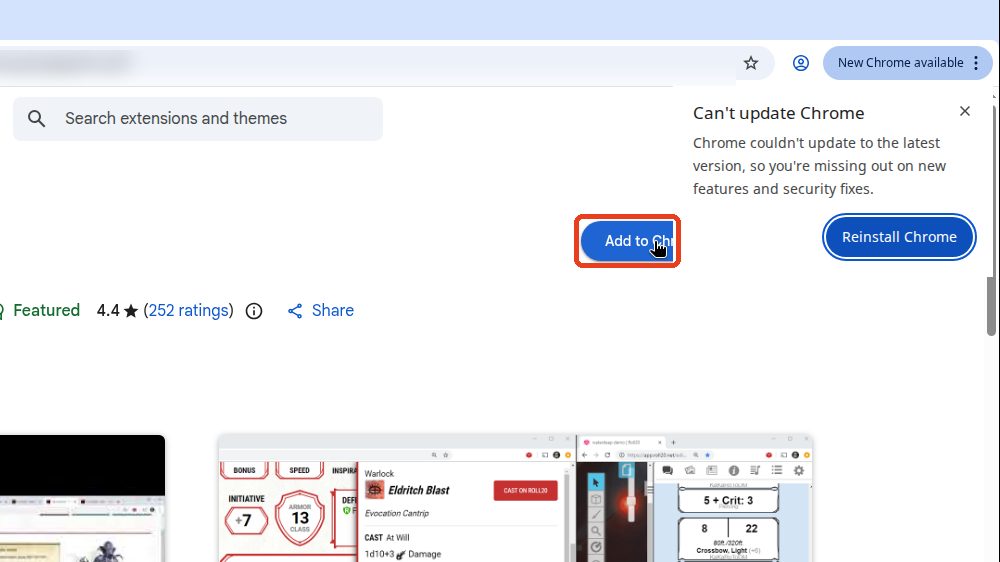
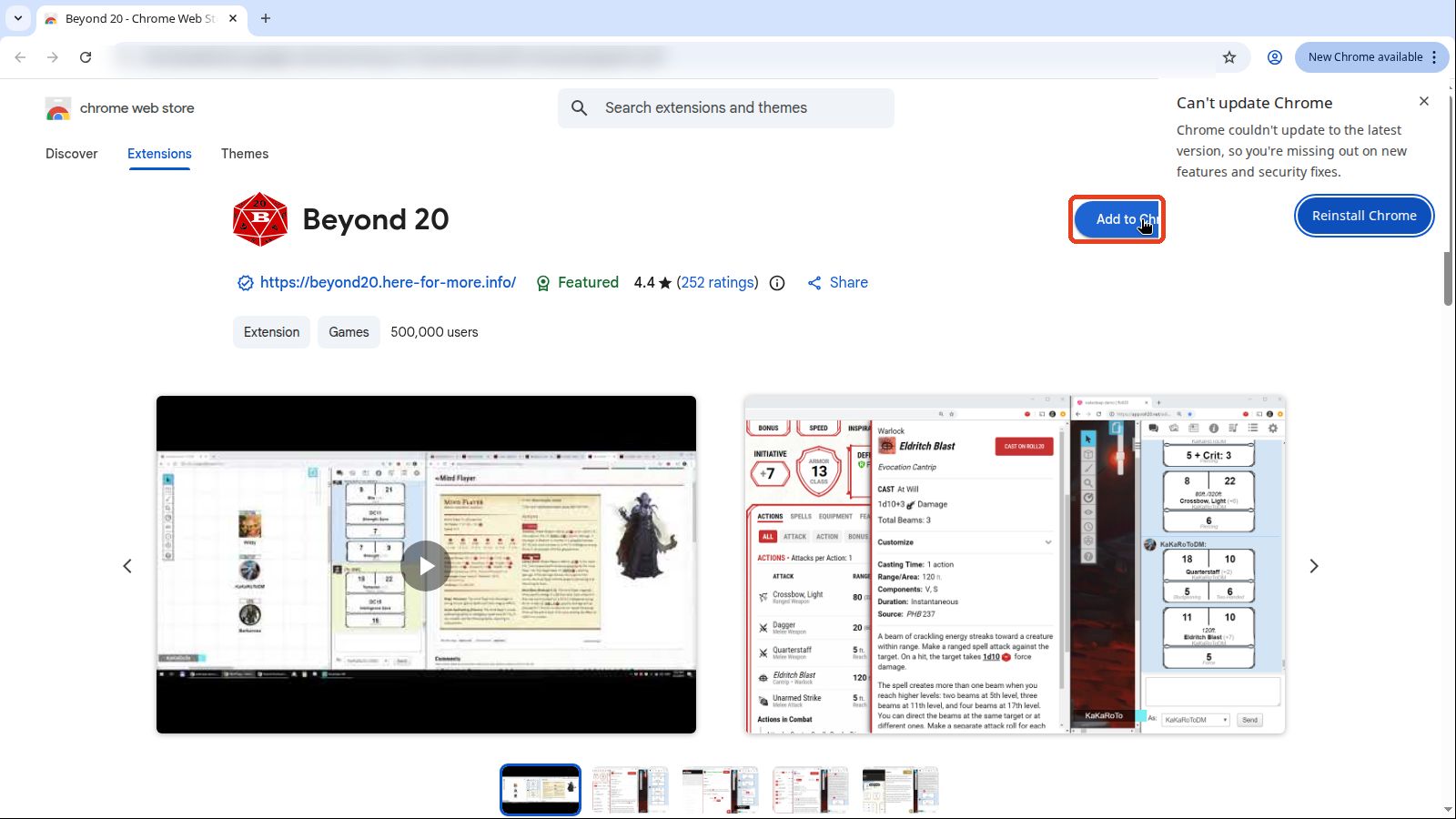
Open Beyond 20 on the Chrome Web Store and click Add to Chrome.
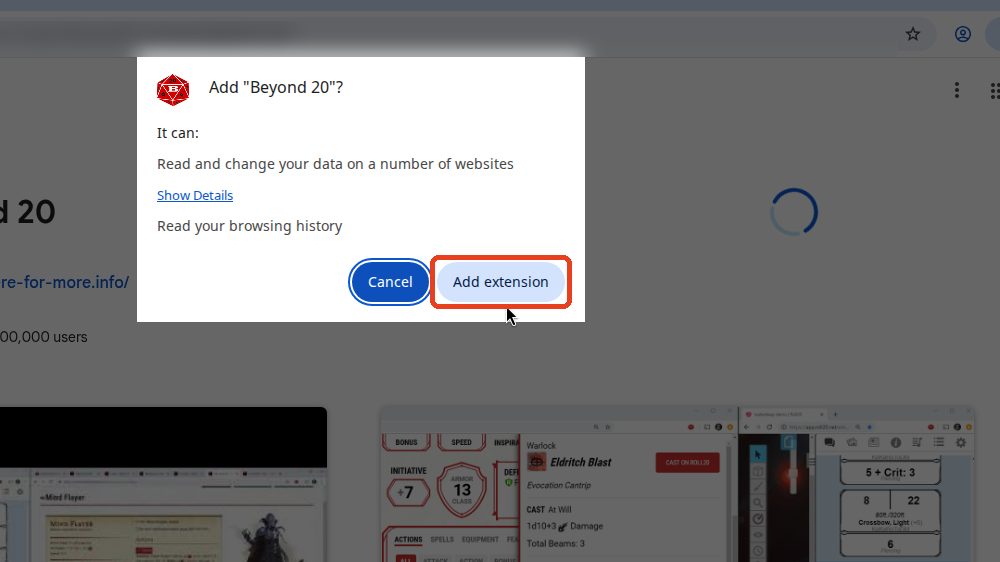
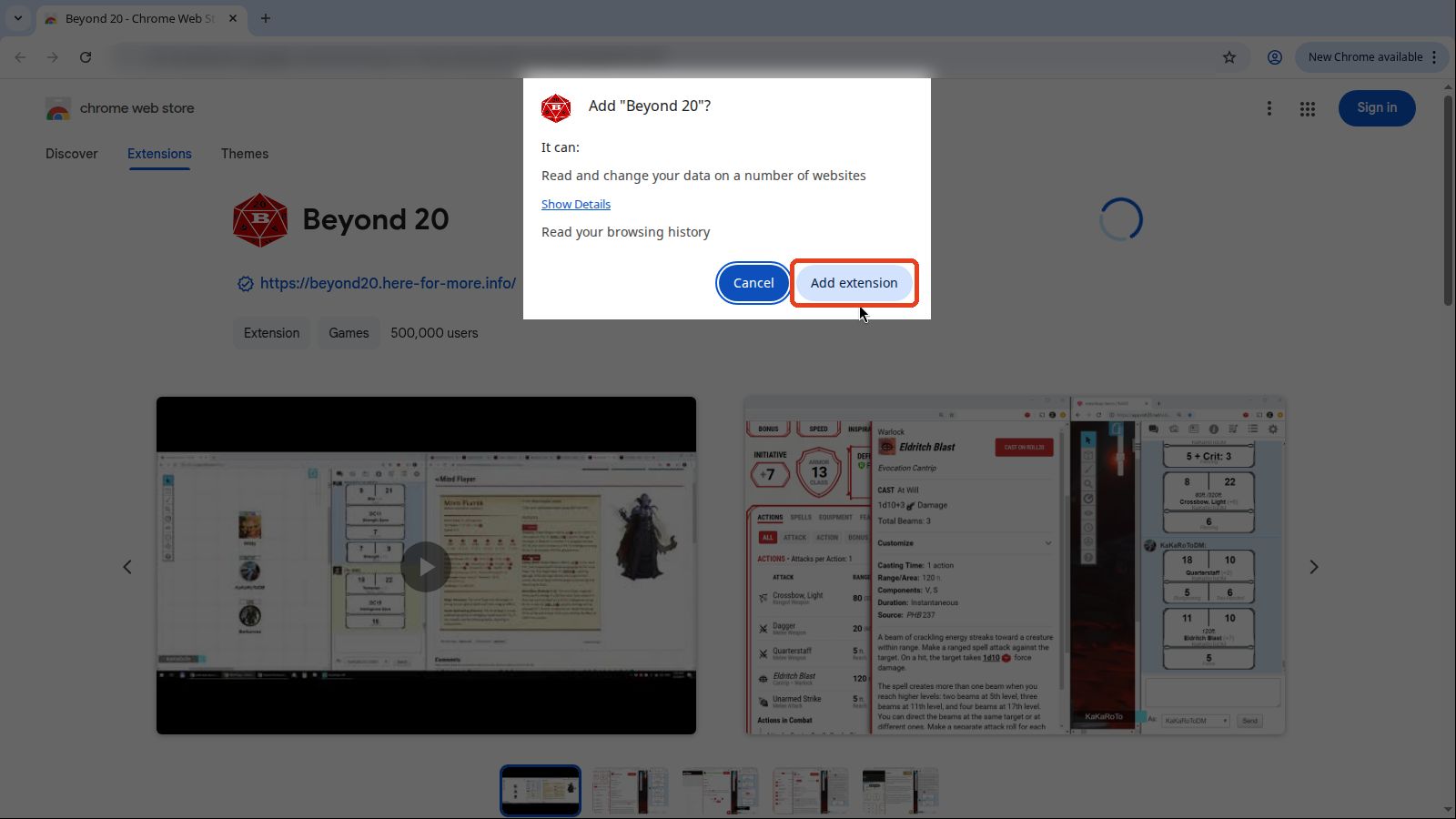
Chrome asks "Add Beyond 20?". Click Add extension. (Careful: the filled blue button is Cancel.)
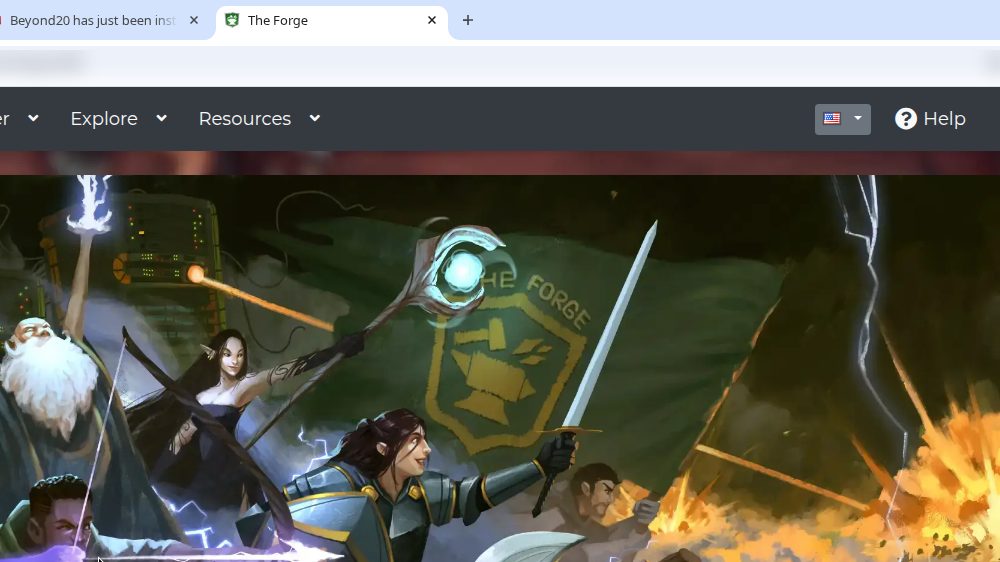
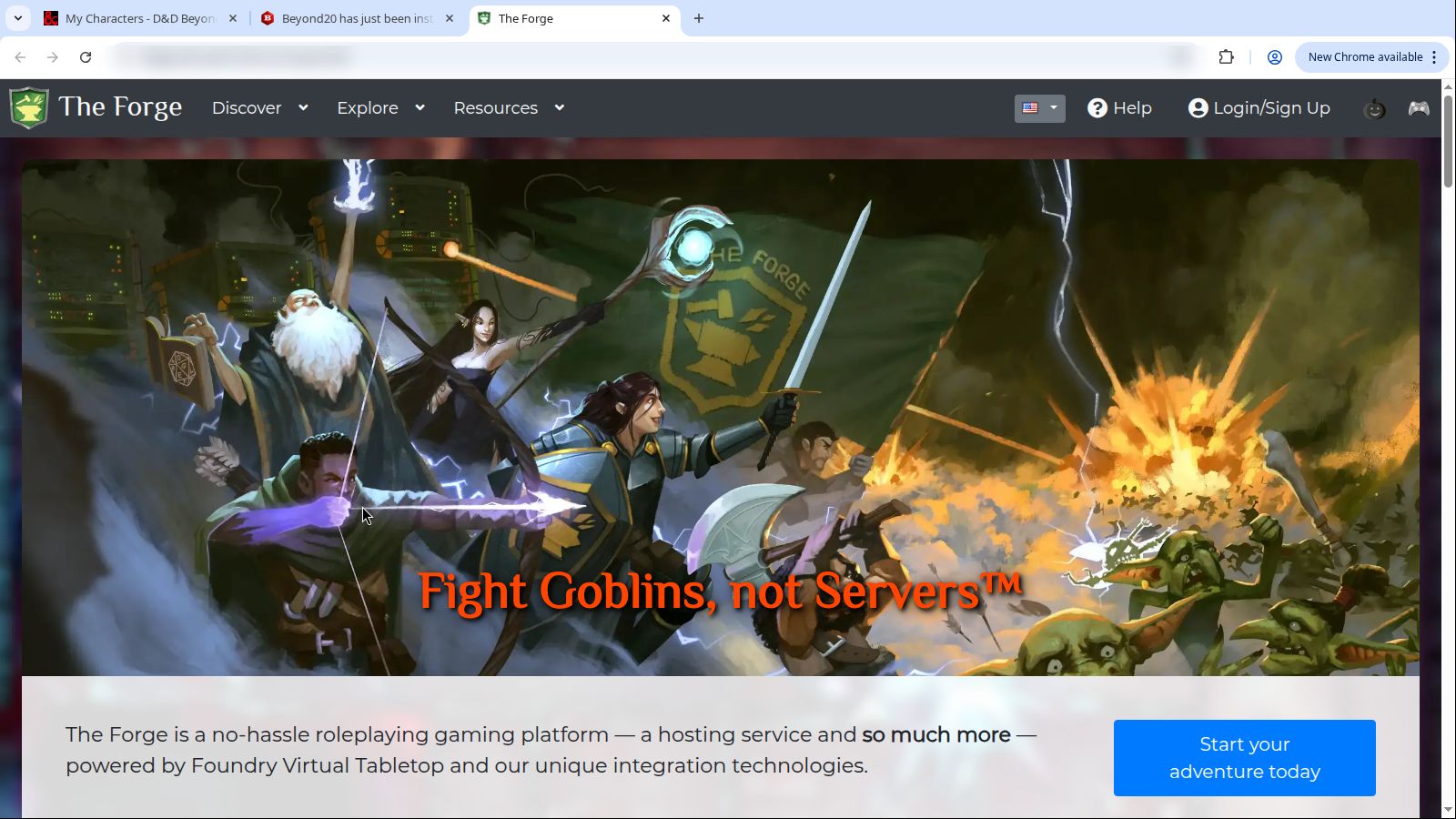
Soon after, Beyond20 opens two tabs of its own and puts them in front: its "just been installed or updated" page and an advert for The Forge. You don't need either. Close them, and go back to your own tabs.
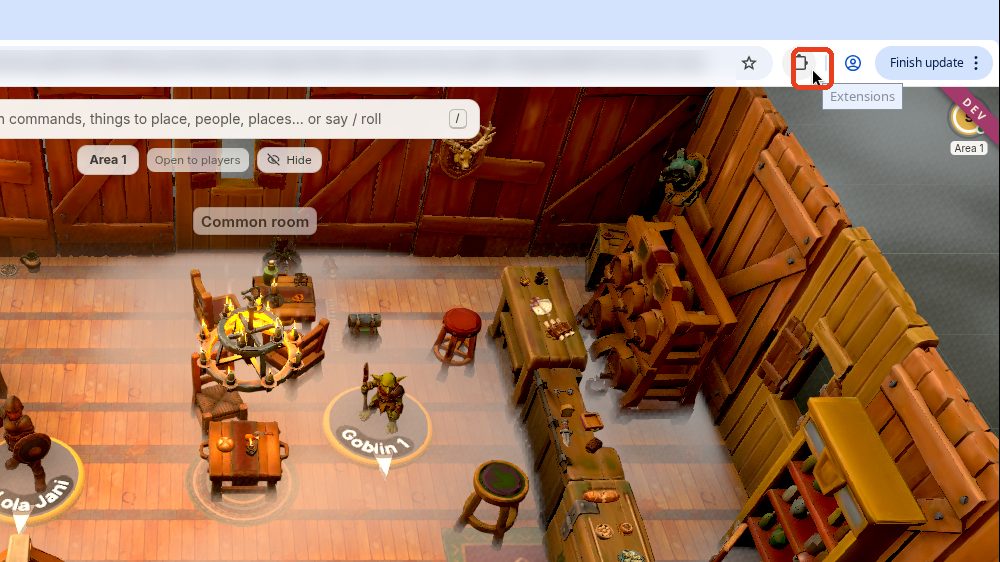
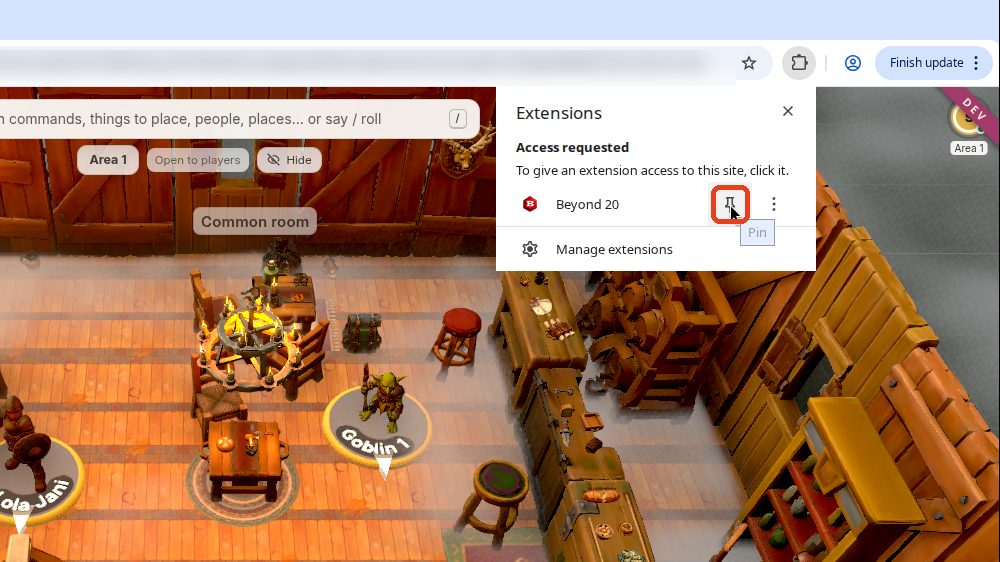
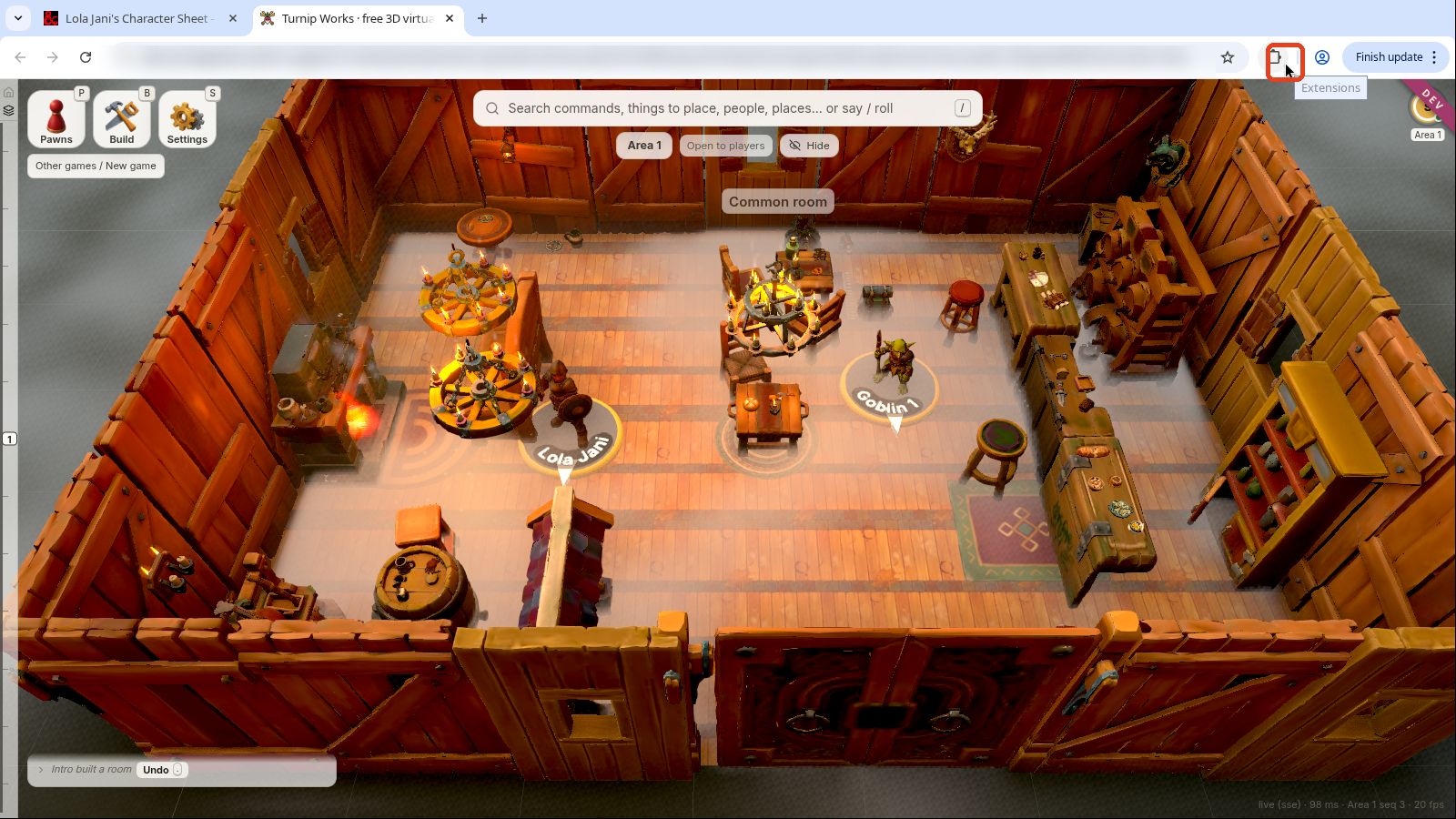
Click the Extensions button (the puzzle piece) at the right of the toolbar.
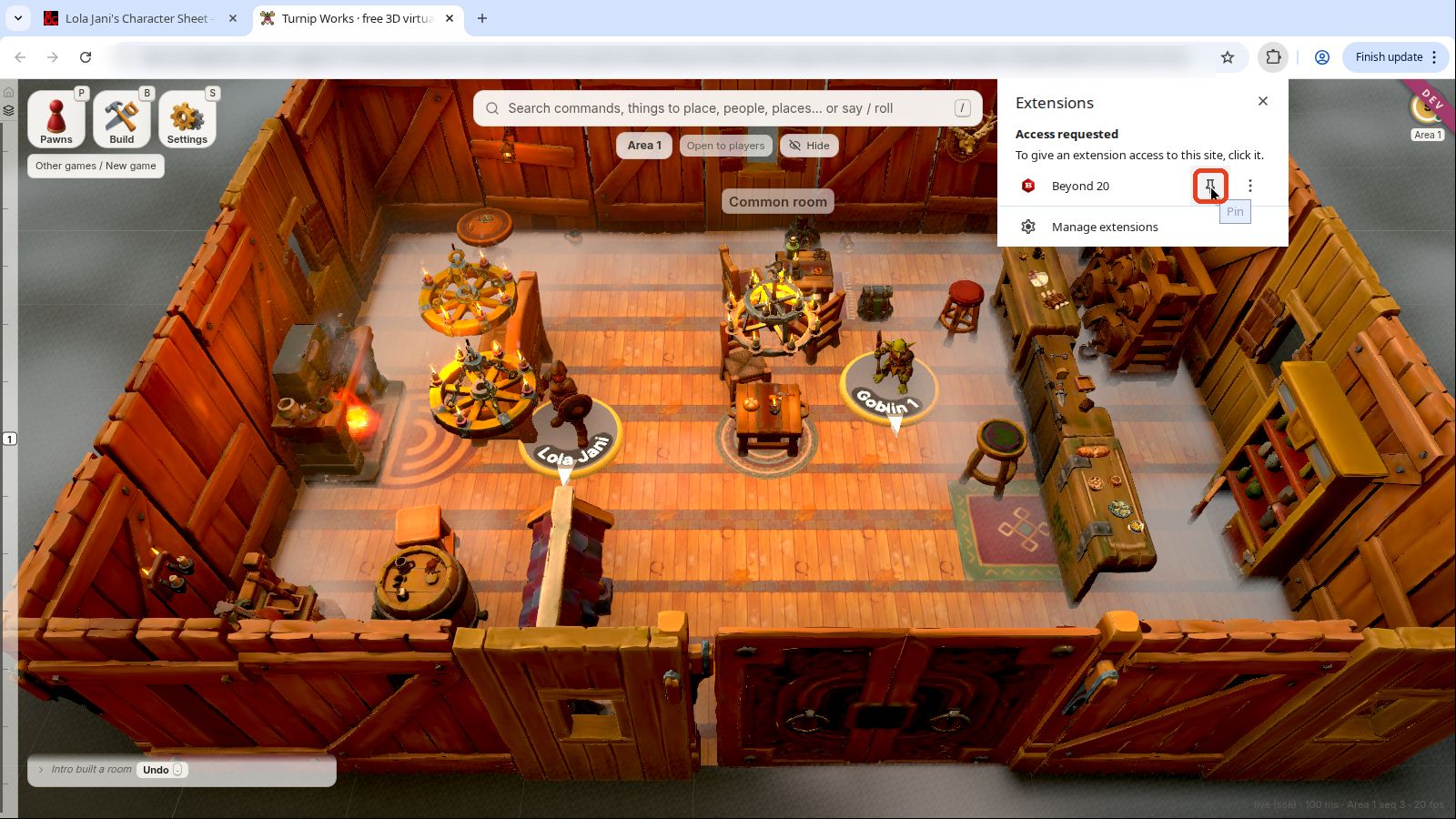
Click the pin next to Beyond 20. Its red d20 icon now stays in the toolbar.
B. Connect your character to Beyond20 (once per character)
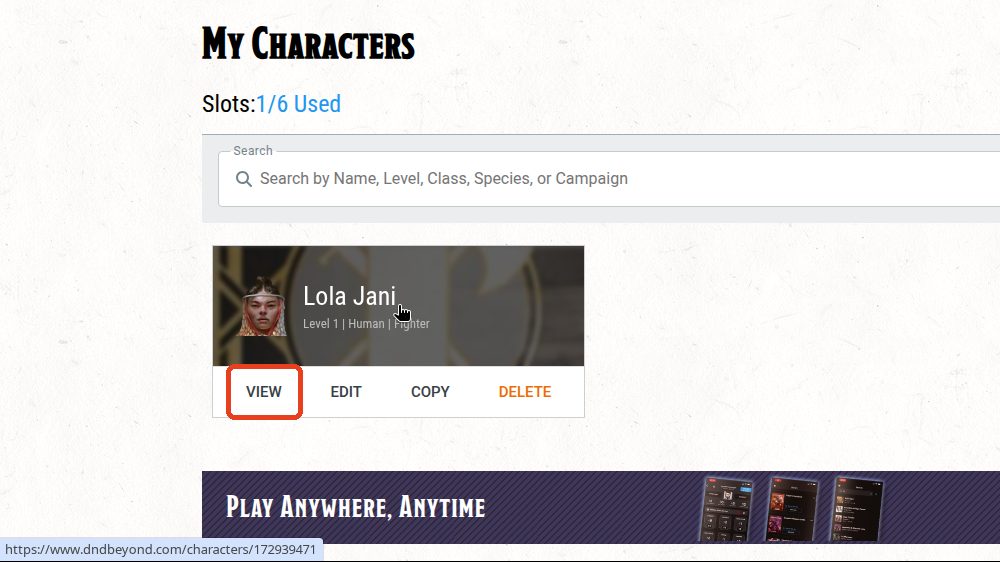
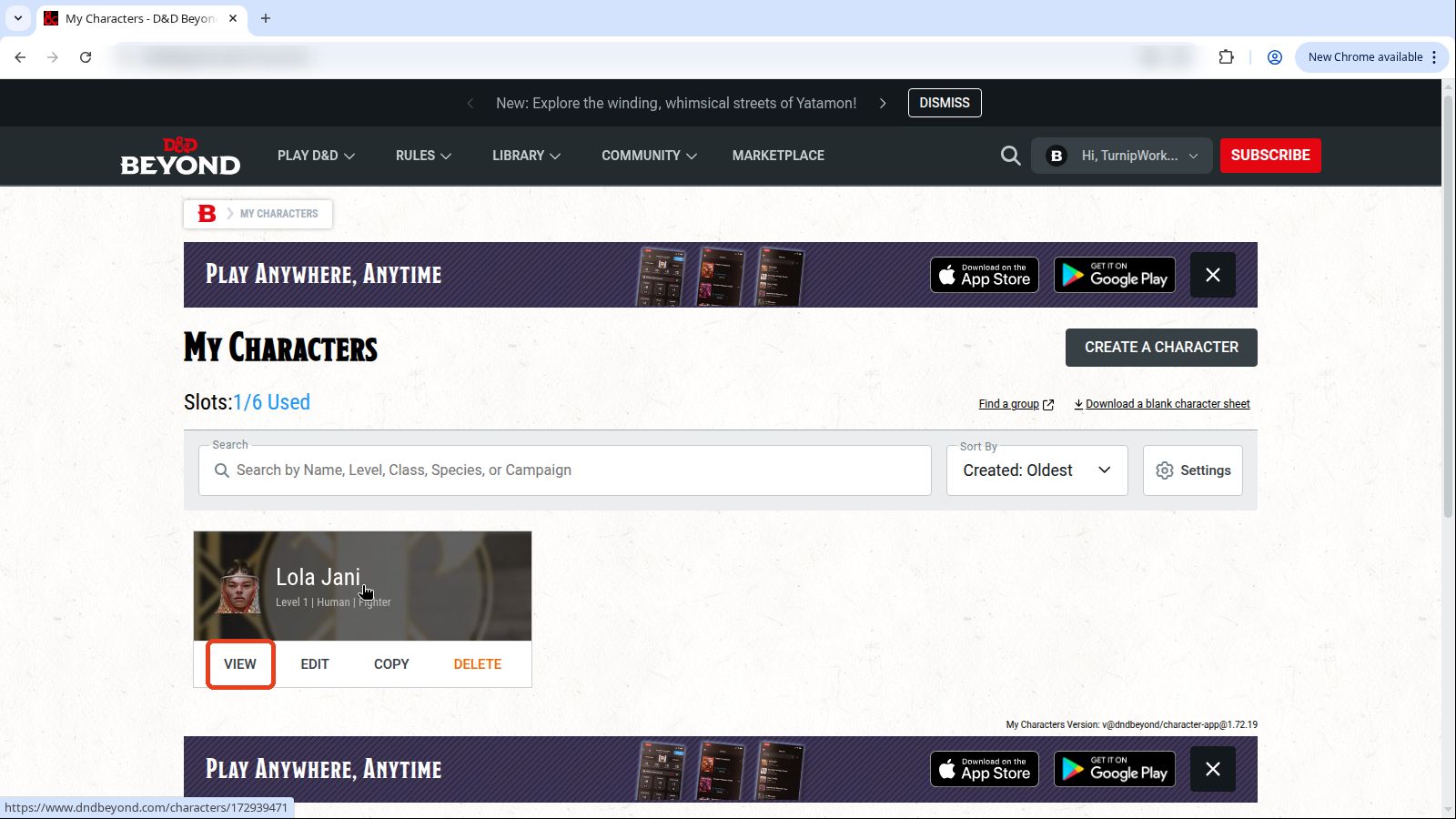
Go to D&D Beyond and open My Characters (sign in if it asks). Click VIEW on your character.
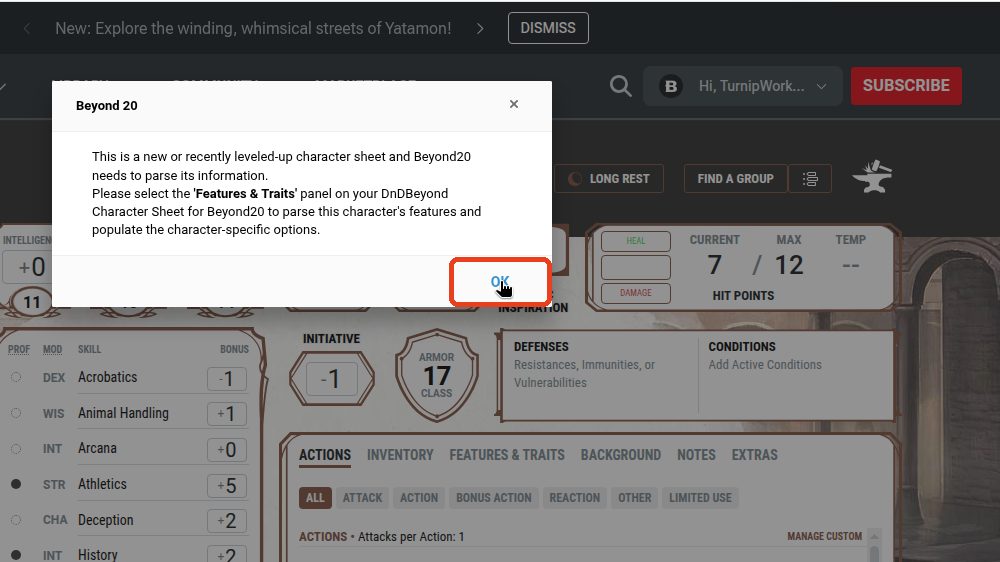
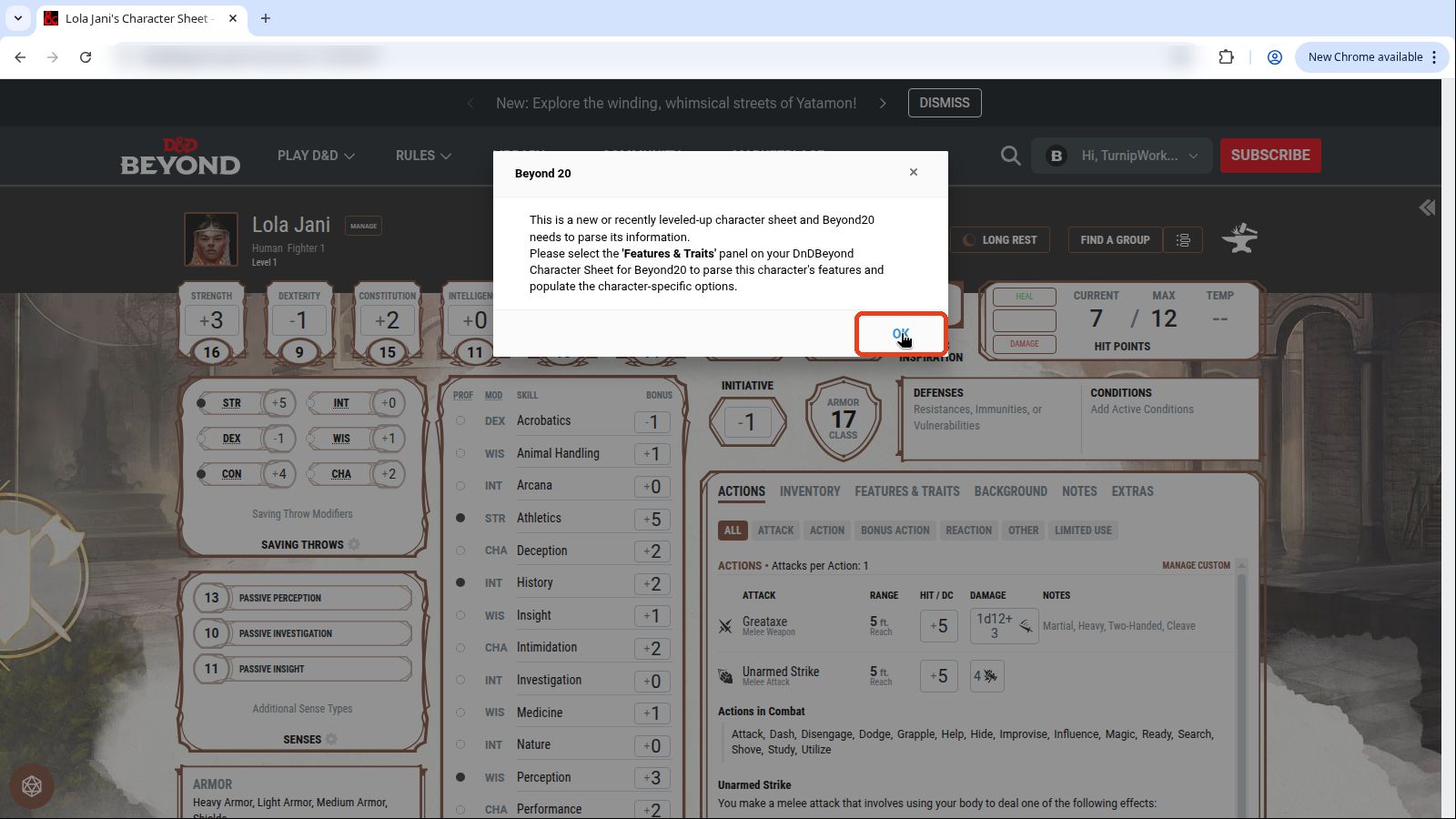
Beyond20 says it needs to read this character. Click OK.
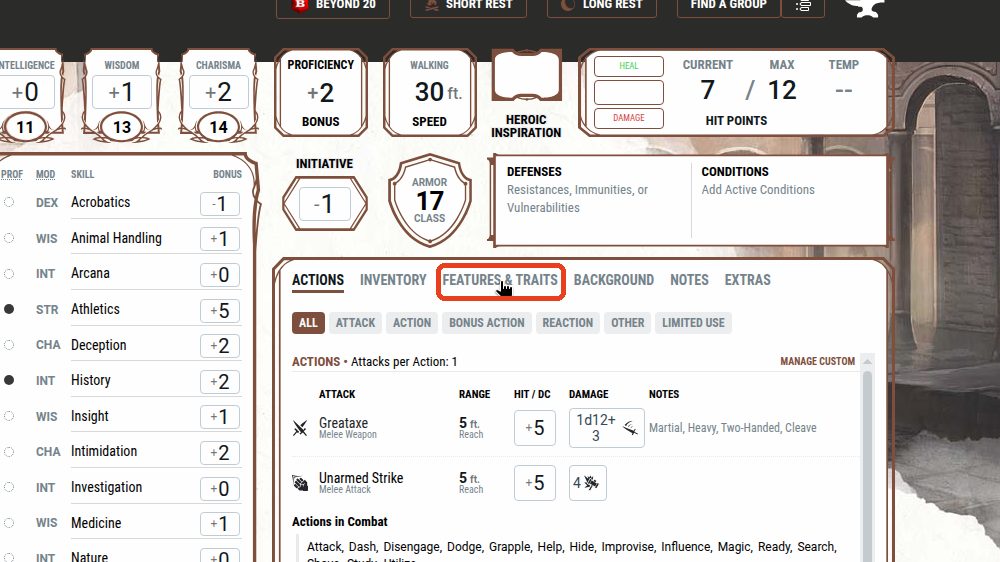
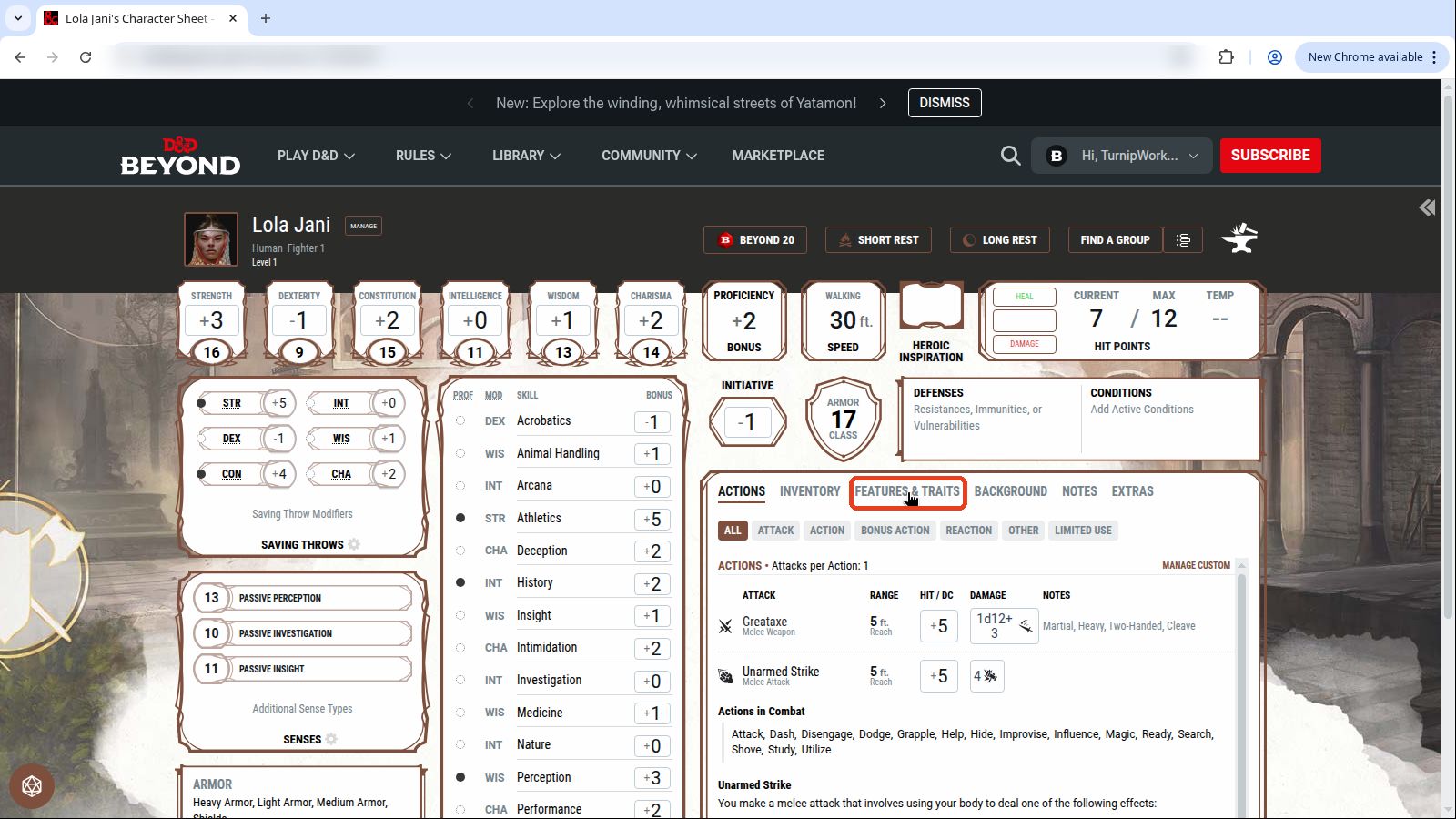
Click the sheet's FEATURES & TRAITS tab once. That is Beyond20 reading your character. Your sheet now has a BEYOND 20 button at the top.
C. Let Beyond20 into Turnip Works (once per browser)
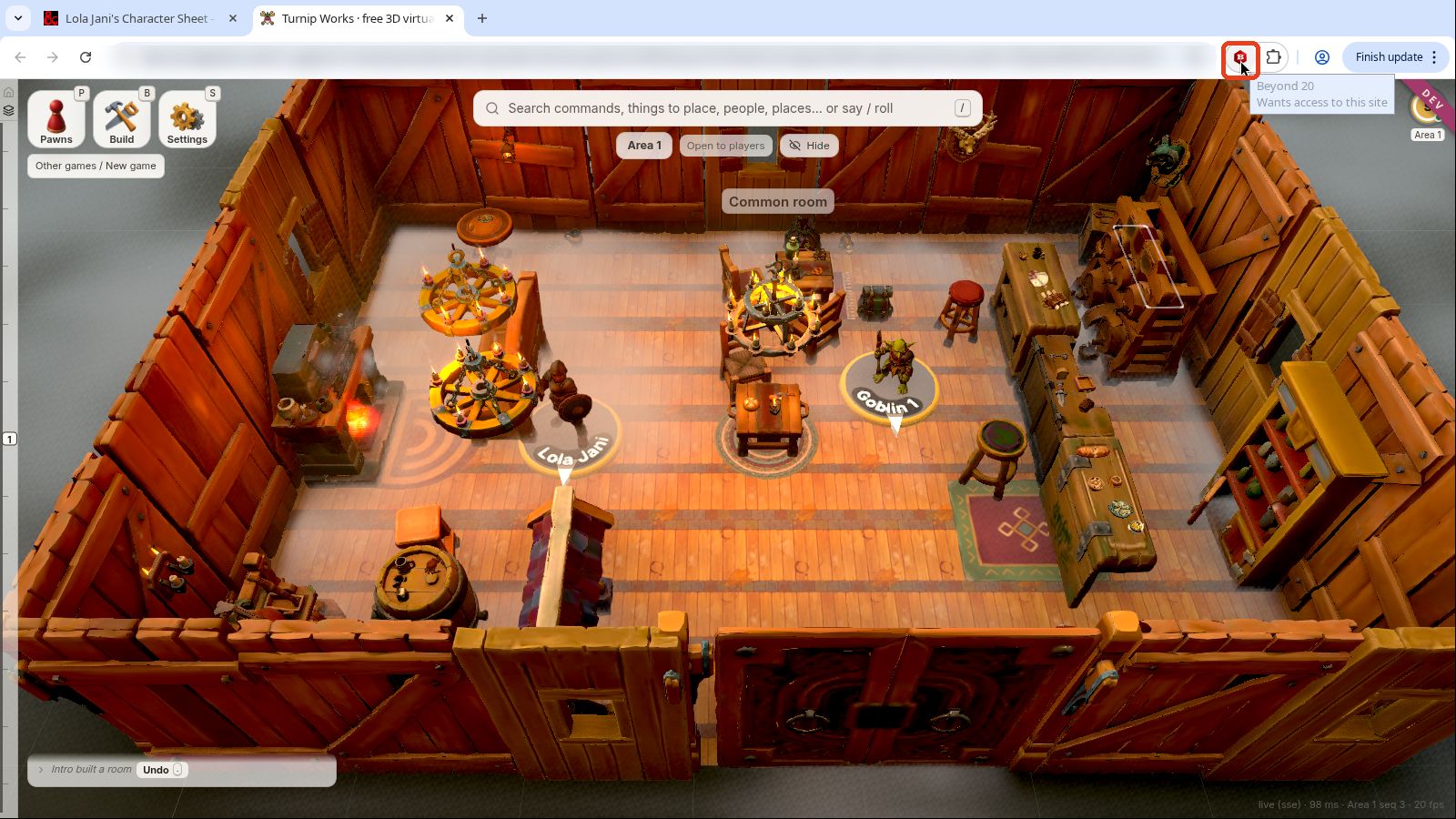
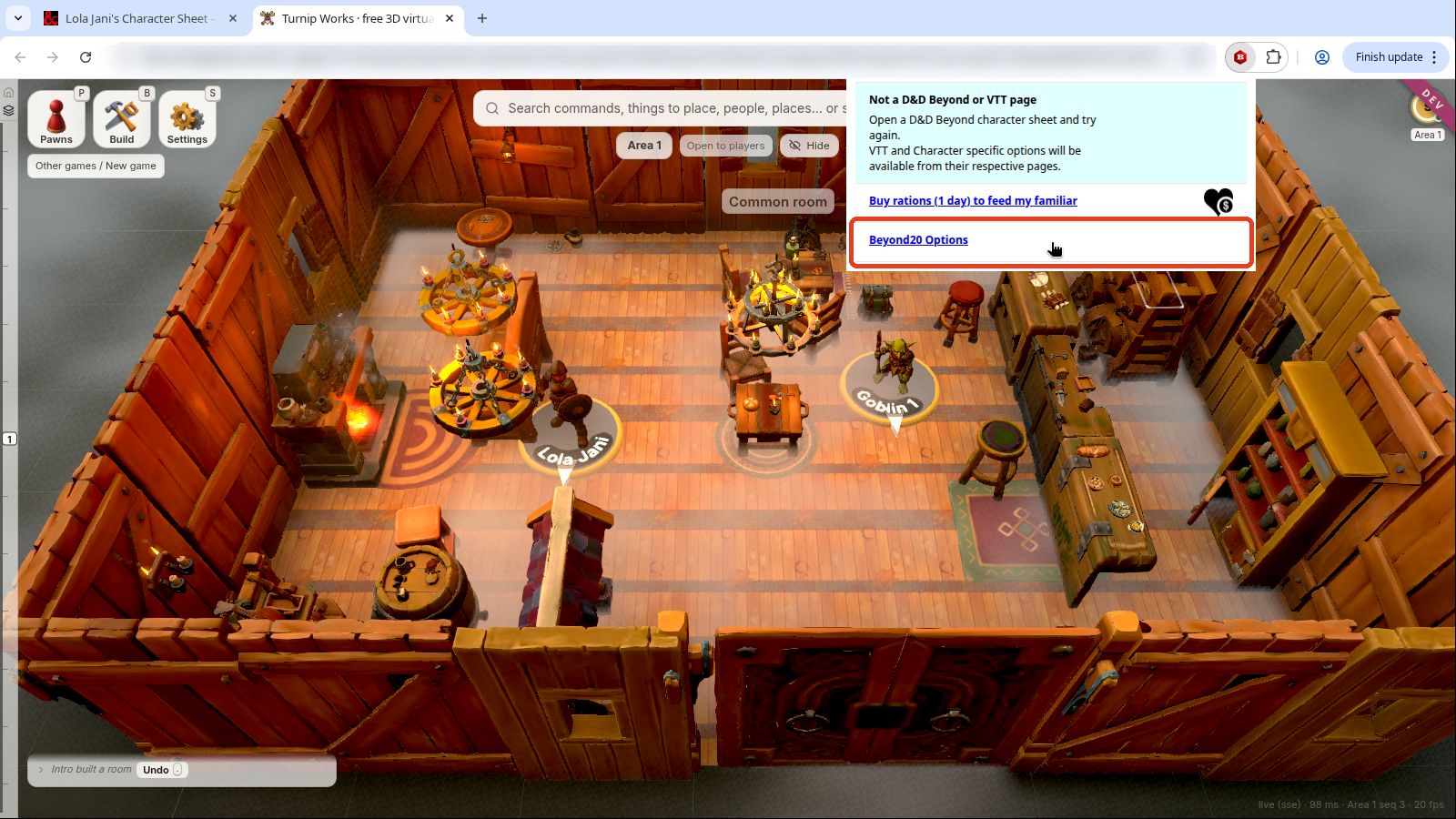
Go to your Turnip Works table, in a tab of the same window. Click the red Beyond20 icon in the toolbar.
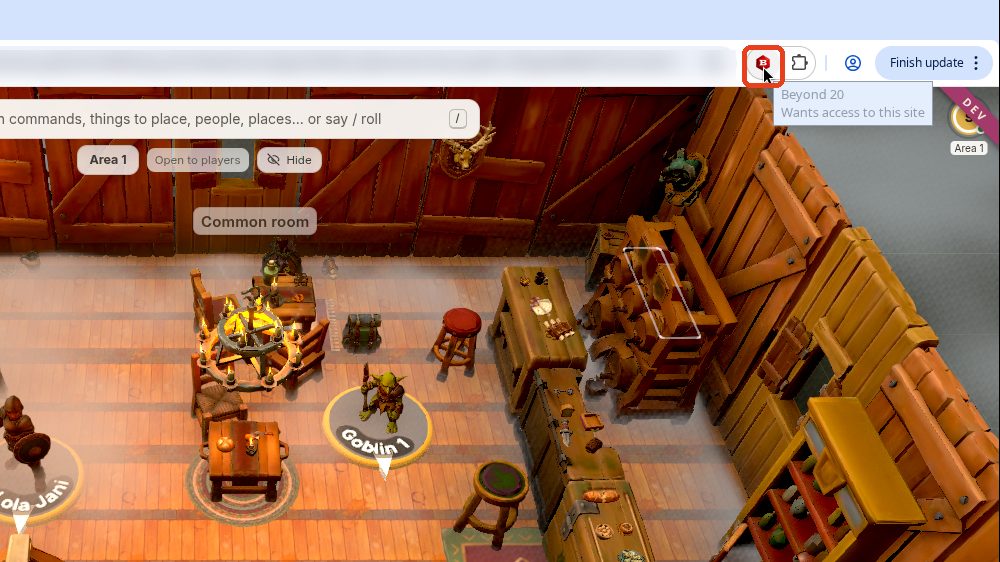
The little window says "Not a D&D Beyond or VTT page". That is expected: Turnip Works isn't set up yet. Click Beyond20 Options. (Don't follow its advice to open your character sheet: there, the icon shows your character's settings instead, and its "Advanced Options" is a different one.)
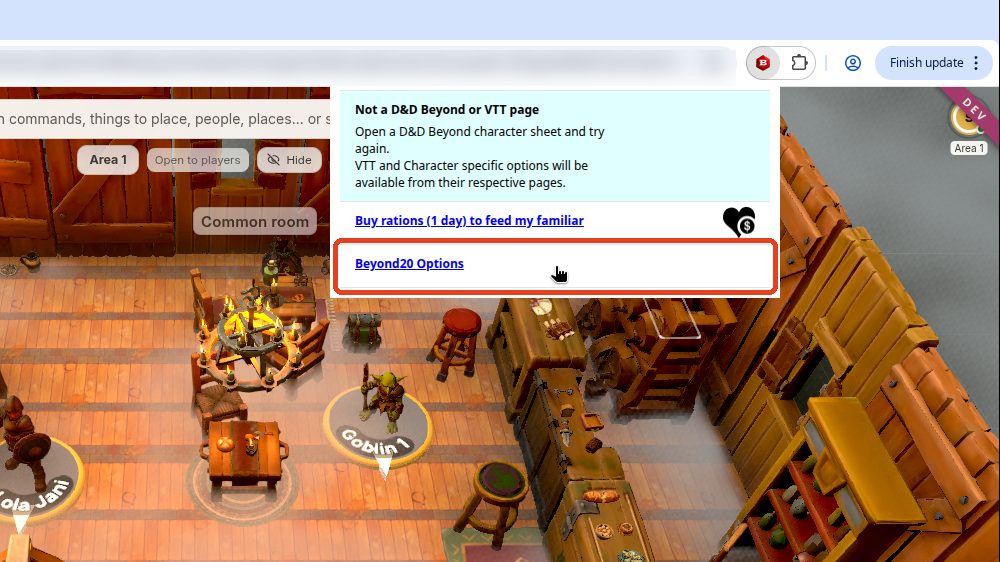
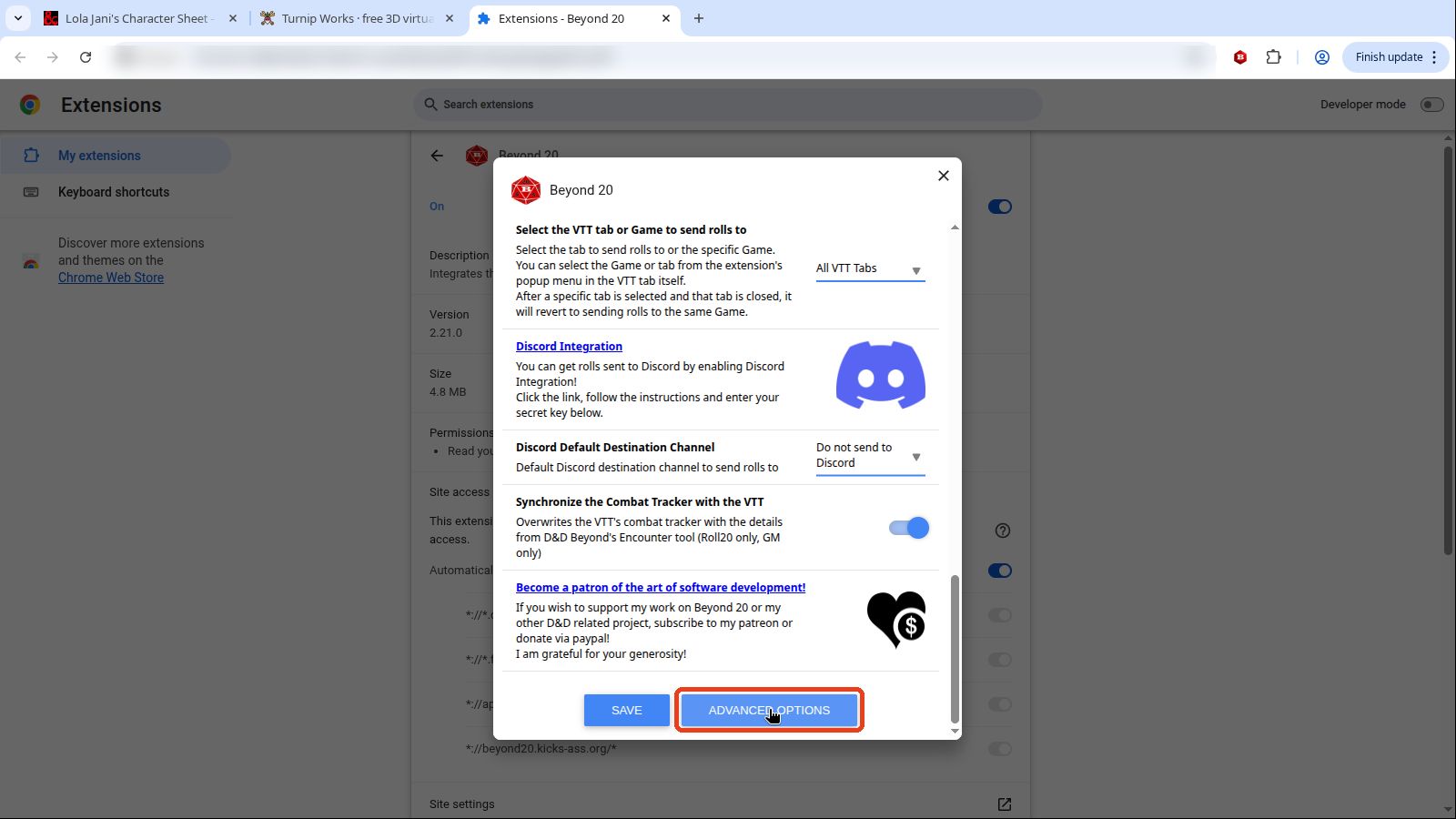
A Beyond20 Options window opens. Scroll all the way down inside it and click Advanced Options.
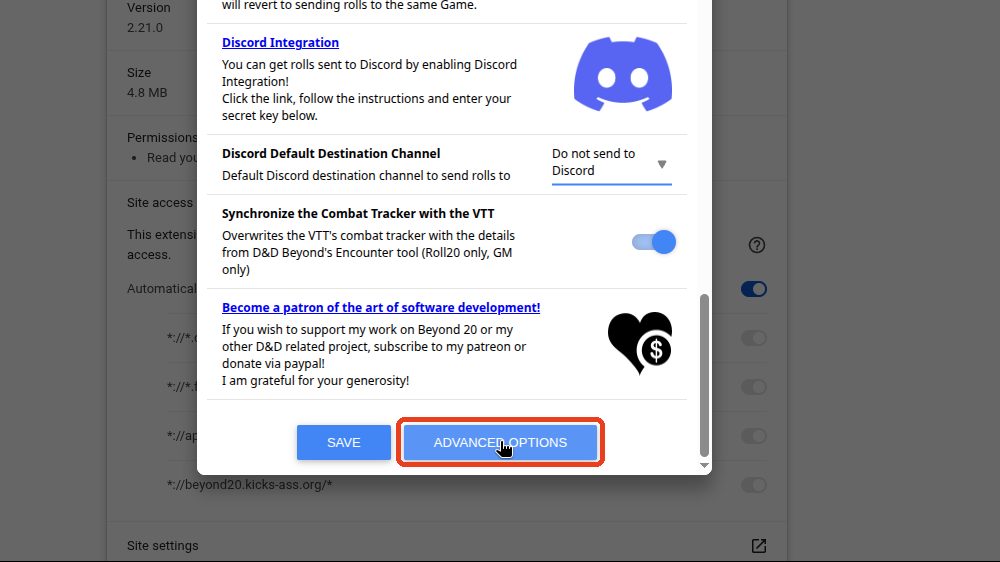
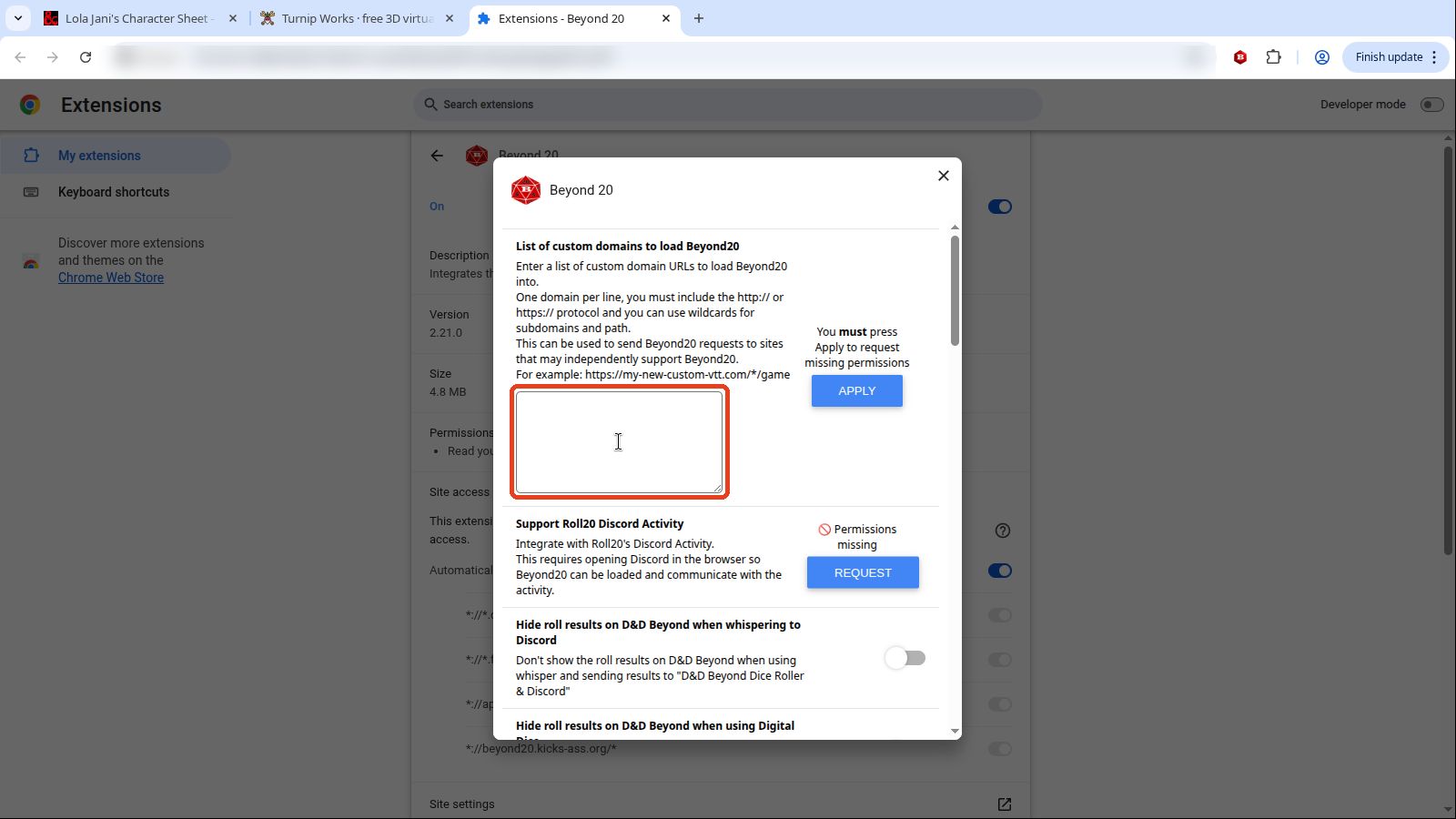
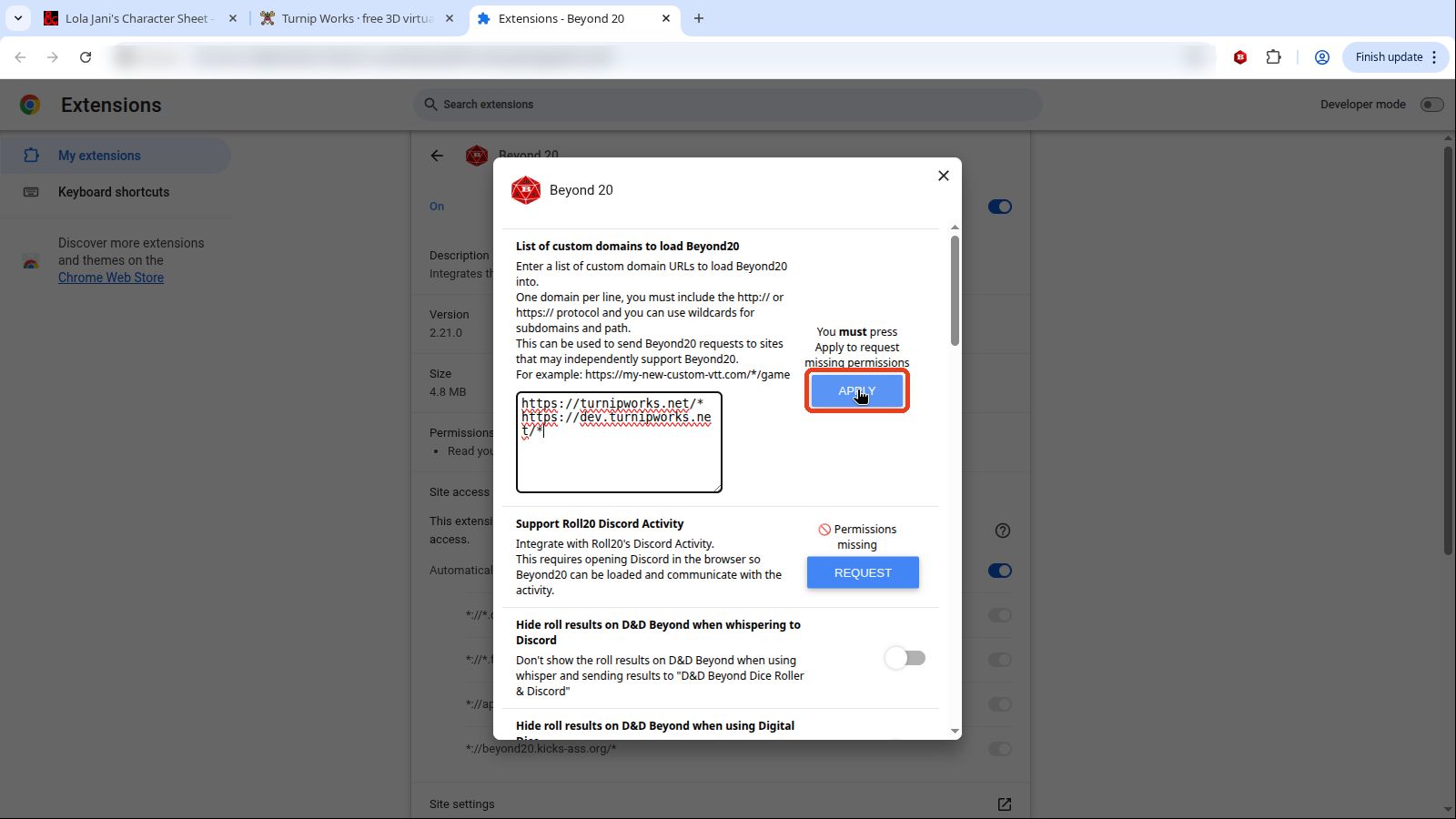
Now scroll all the way back up. The very first setting is List of custom domains to load Beyond20. Click in its box.
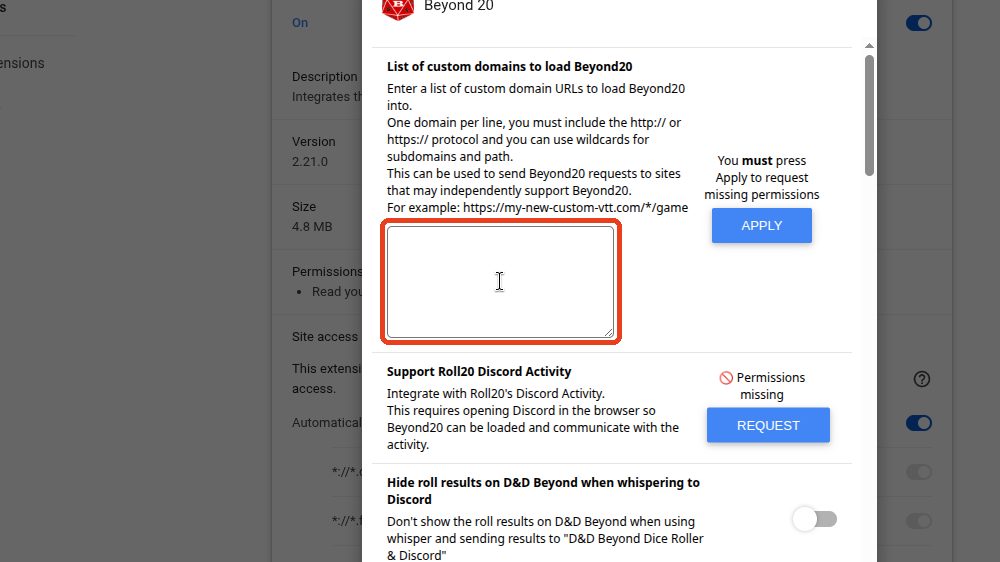
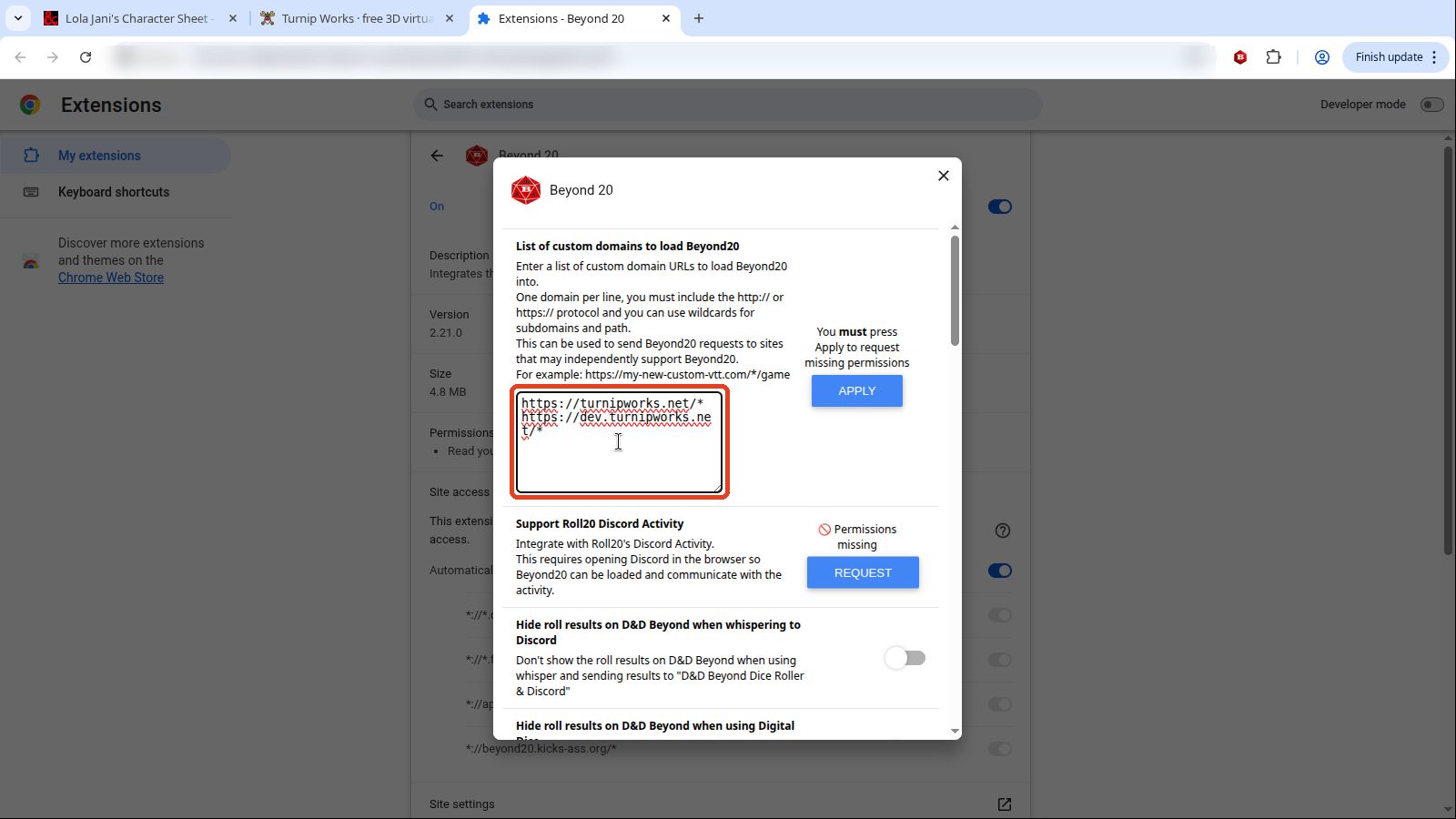
Type
https://turnipworks.net/*(exactly that, with the/*at the end). Testing on dev.turnipworks.net? Addhttps://dev.turnipworks.net/*as a second line; the picture has it, you don't need it.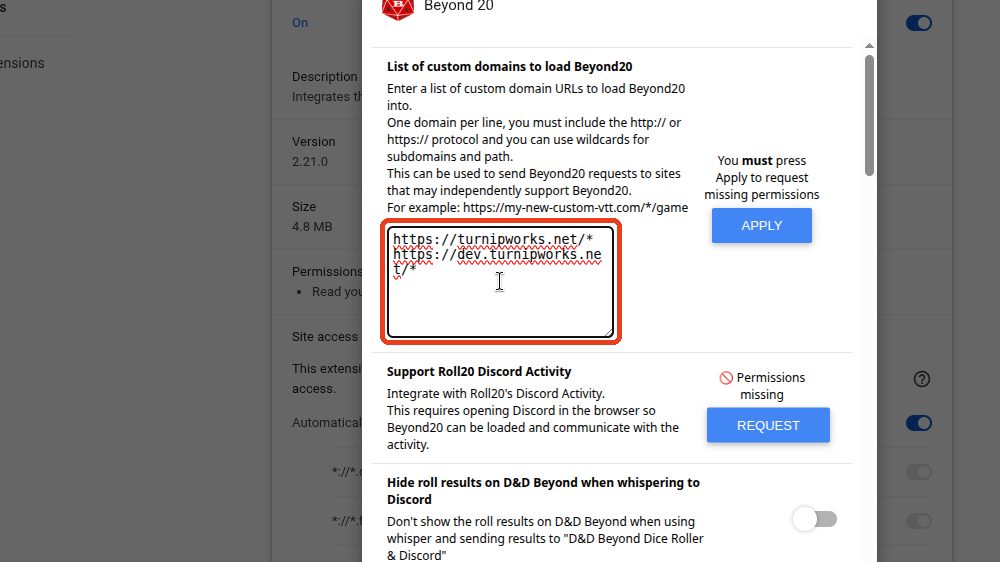
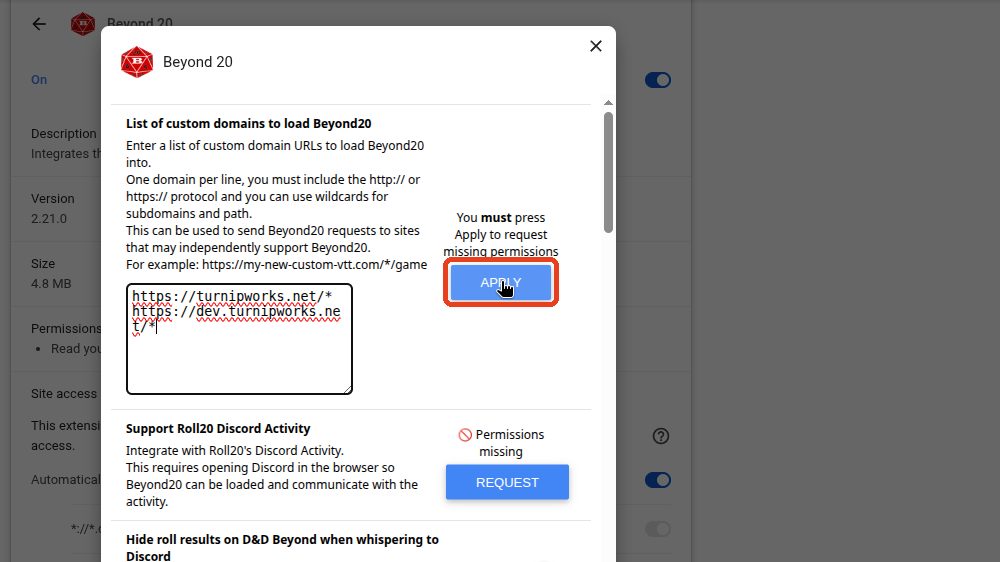
Click Apply, next to the box.
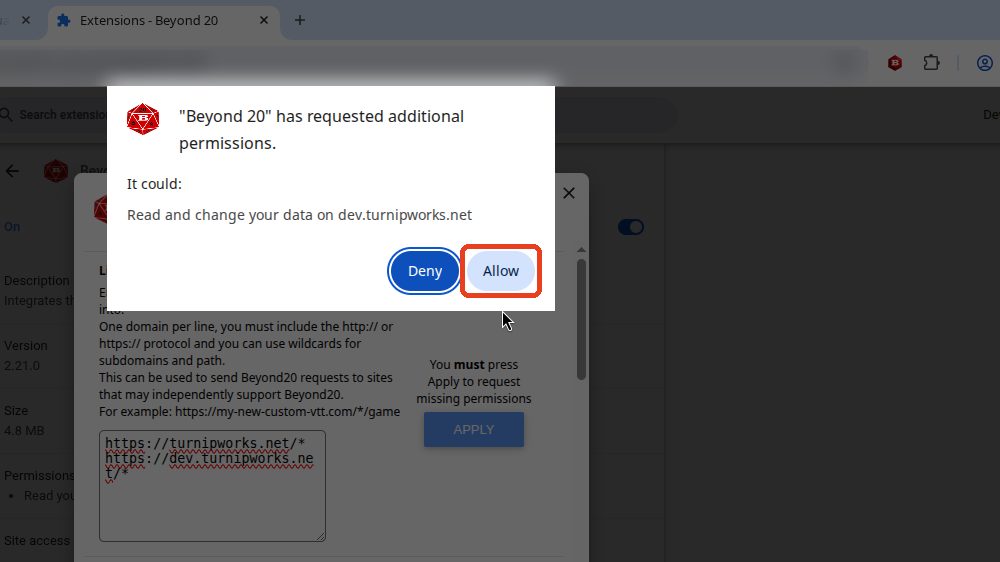
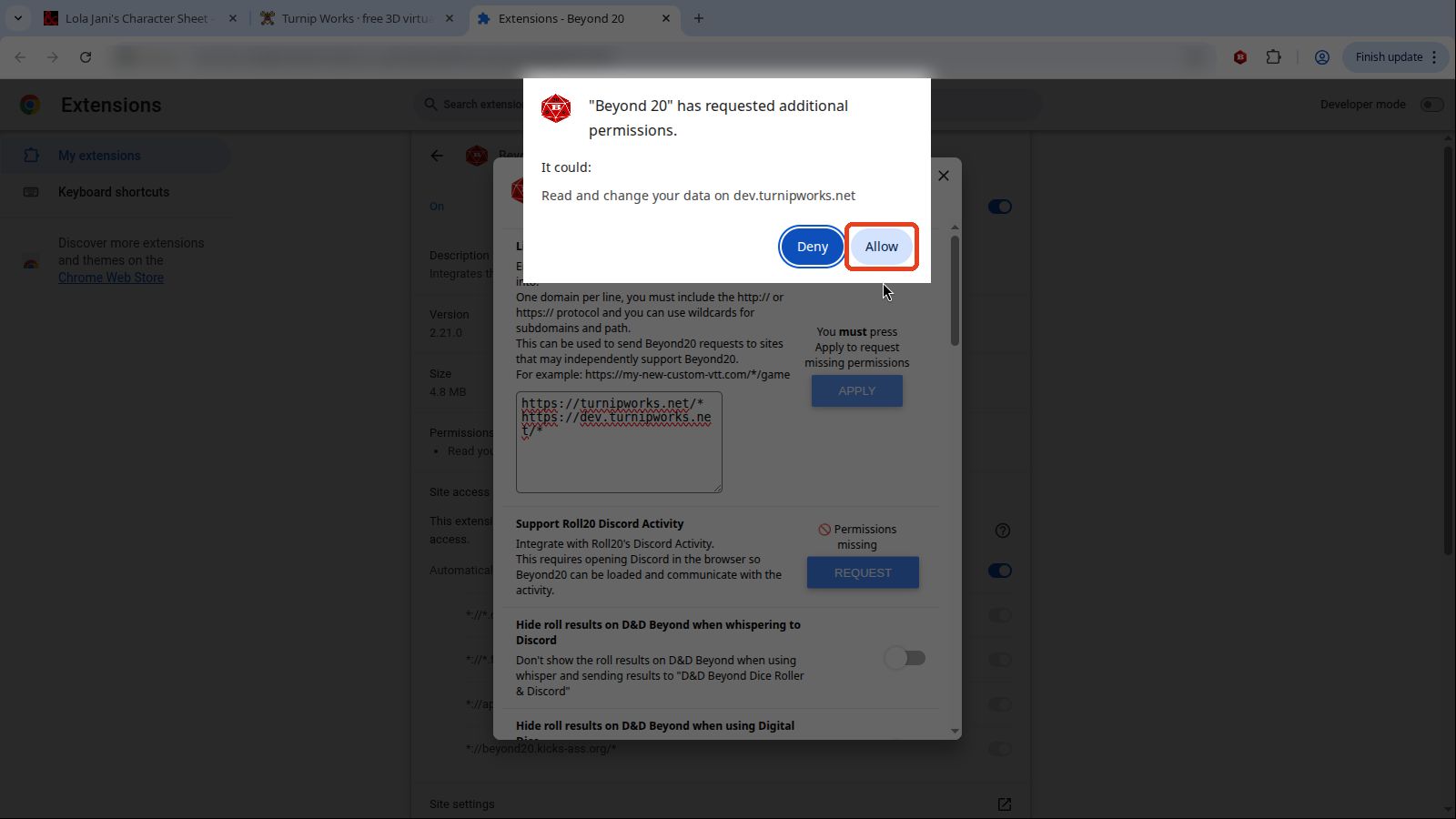
Chrome asks whether Beyond 20 may "read and change your data" on turnipworks.net. Click Allow. (The filled blue button is Deny.) If it asks again, allow again.
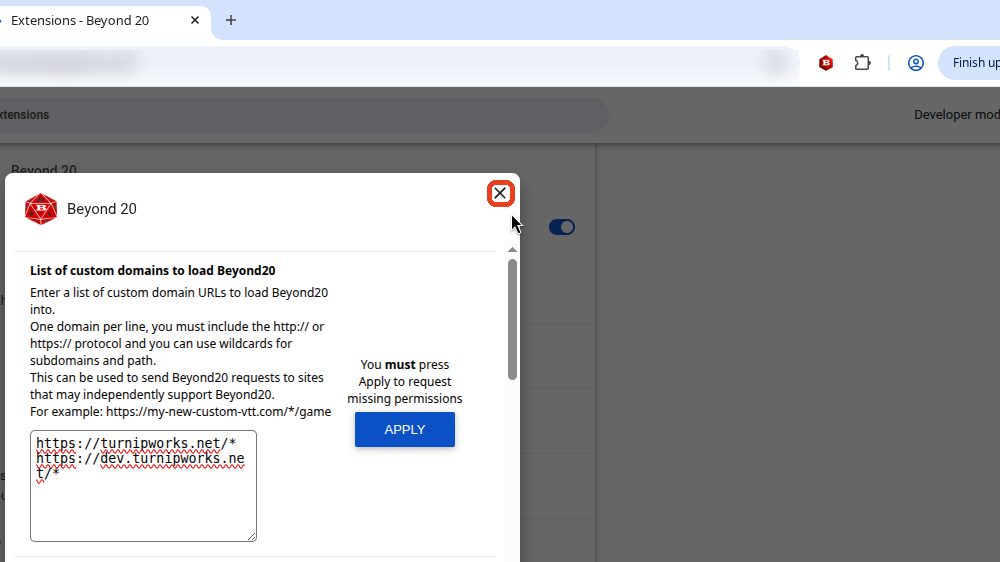
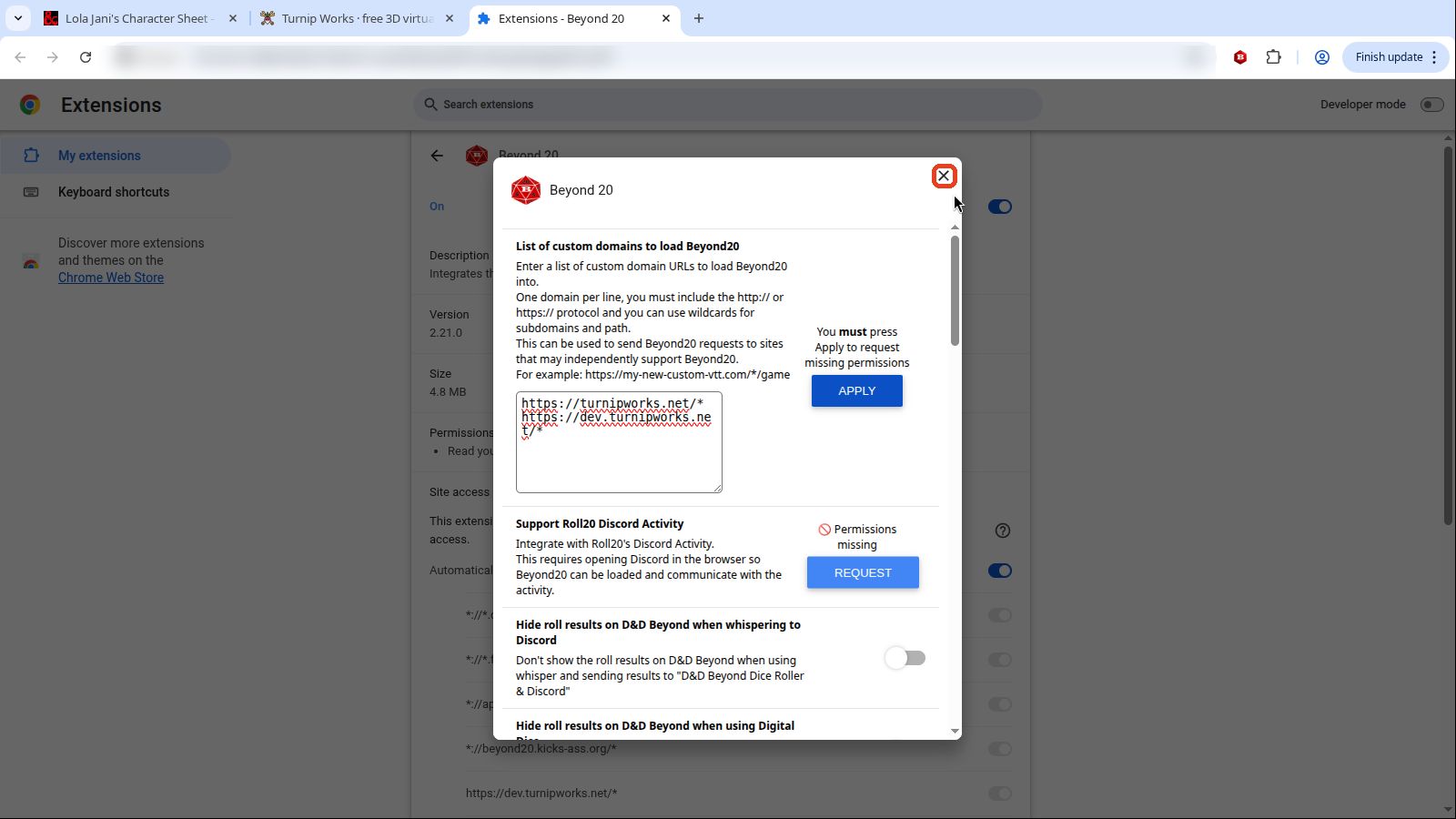
Close the Beyond20 Options window with its ✕.
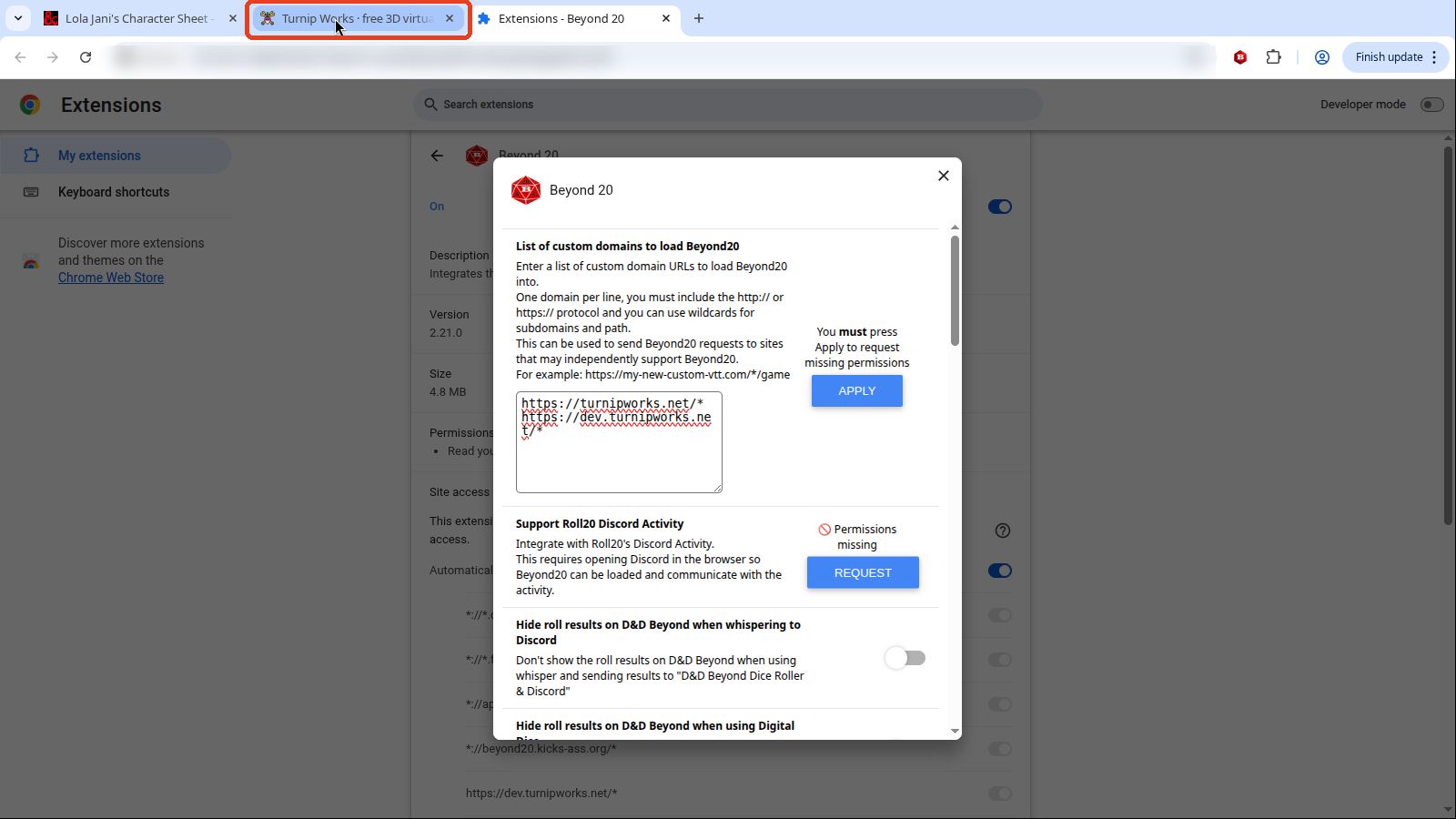
Click your Turnip Works tab.
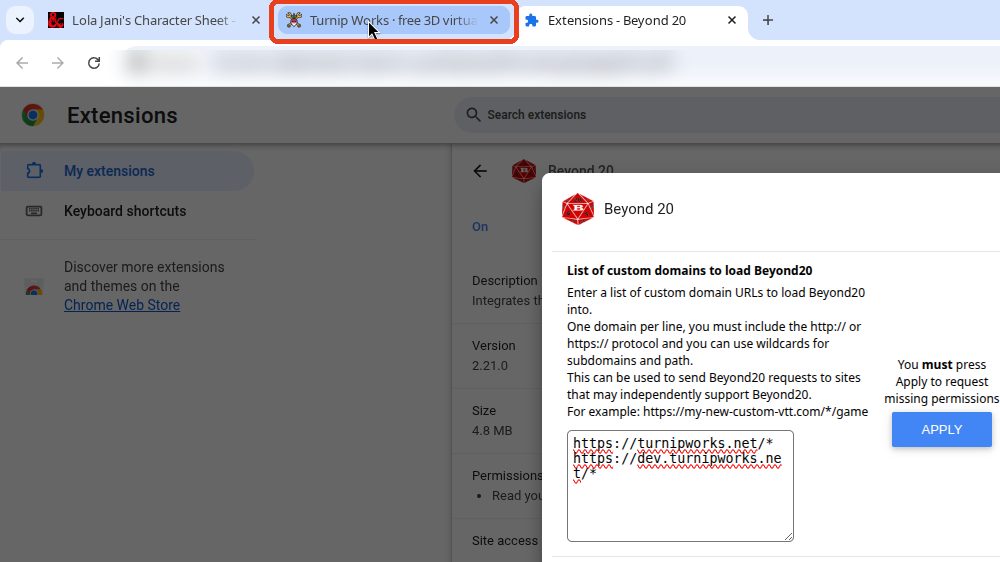
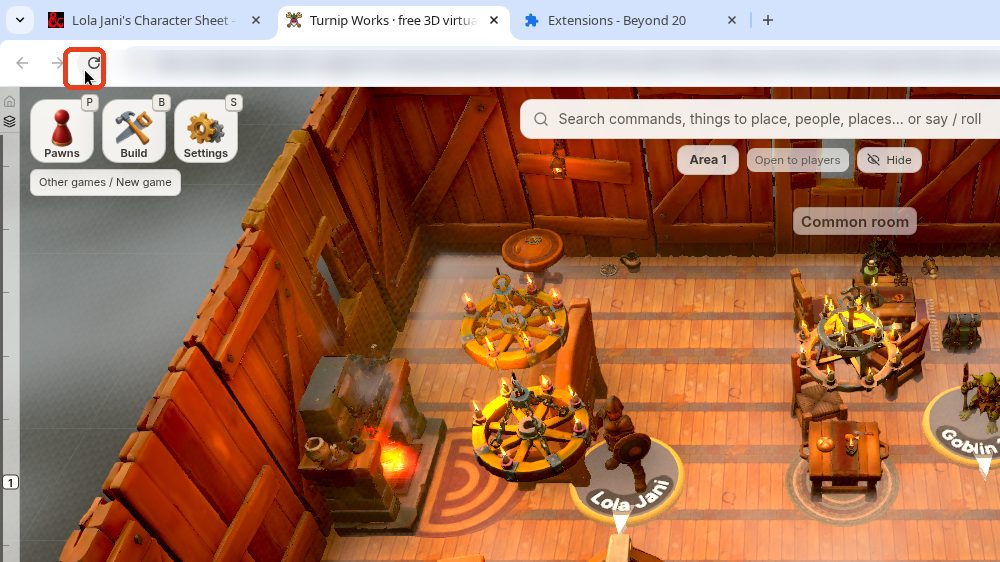
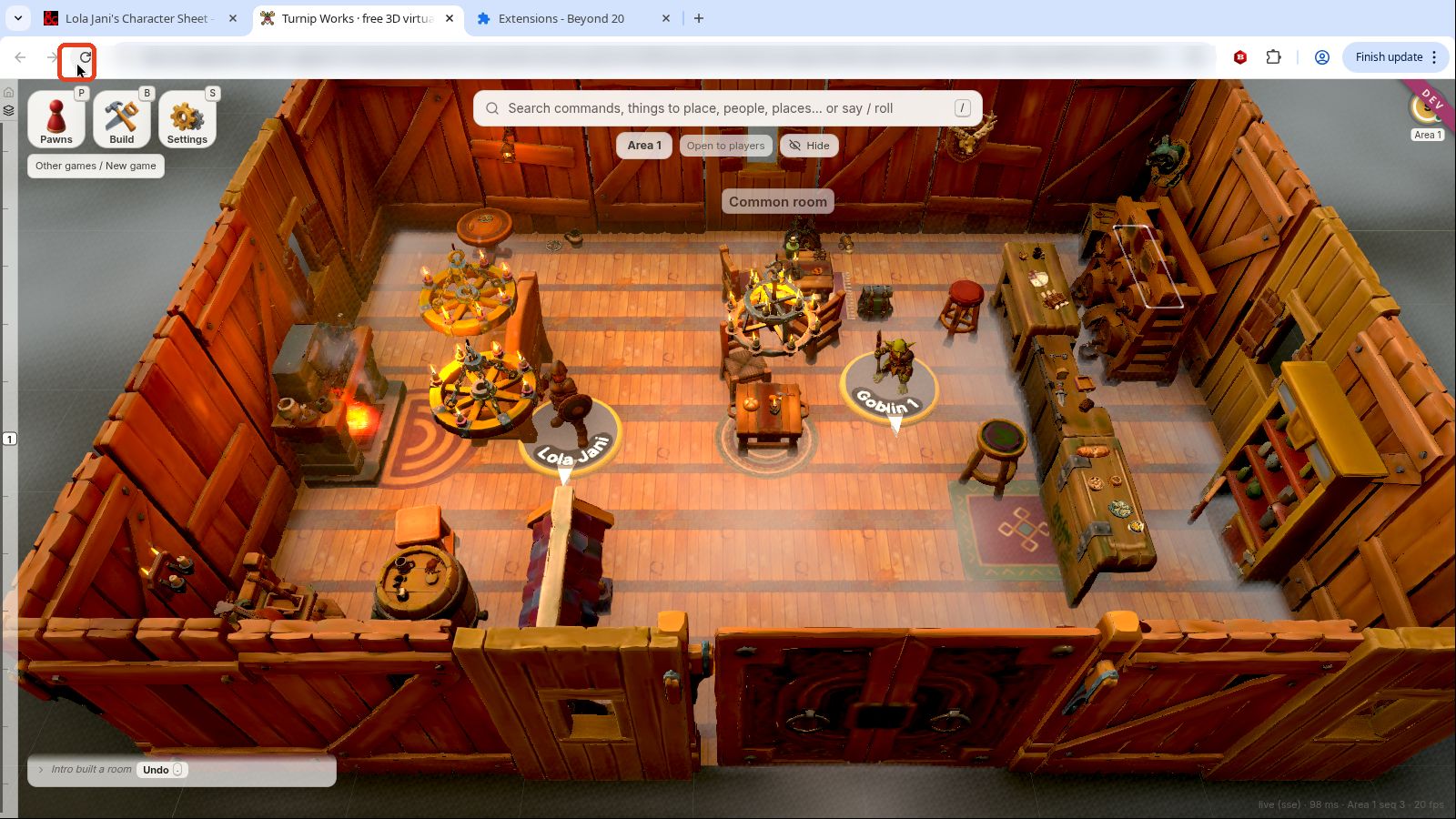
Click Reload (or press F5). Beyond20 only starts listening to a tab after it reloads.
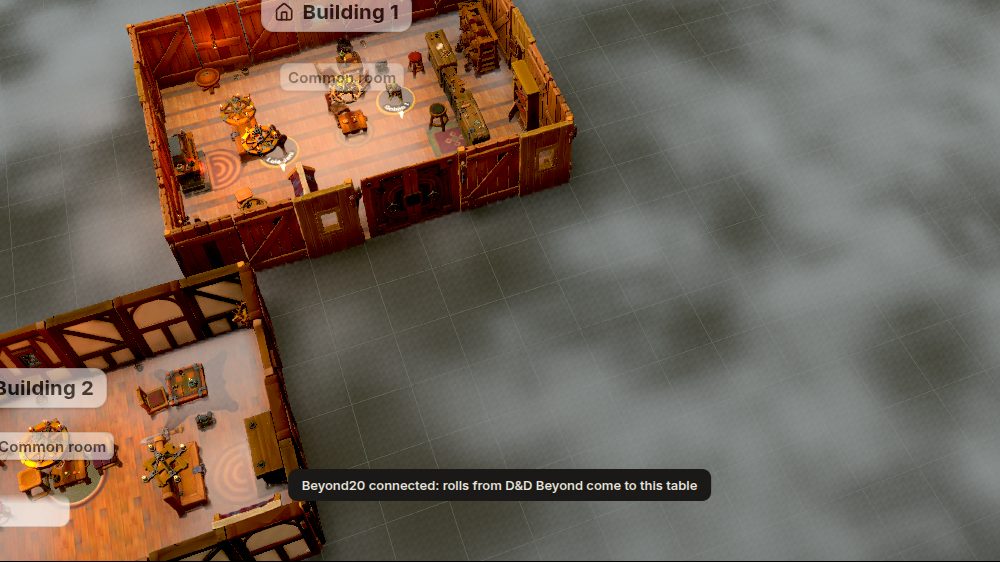
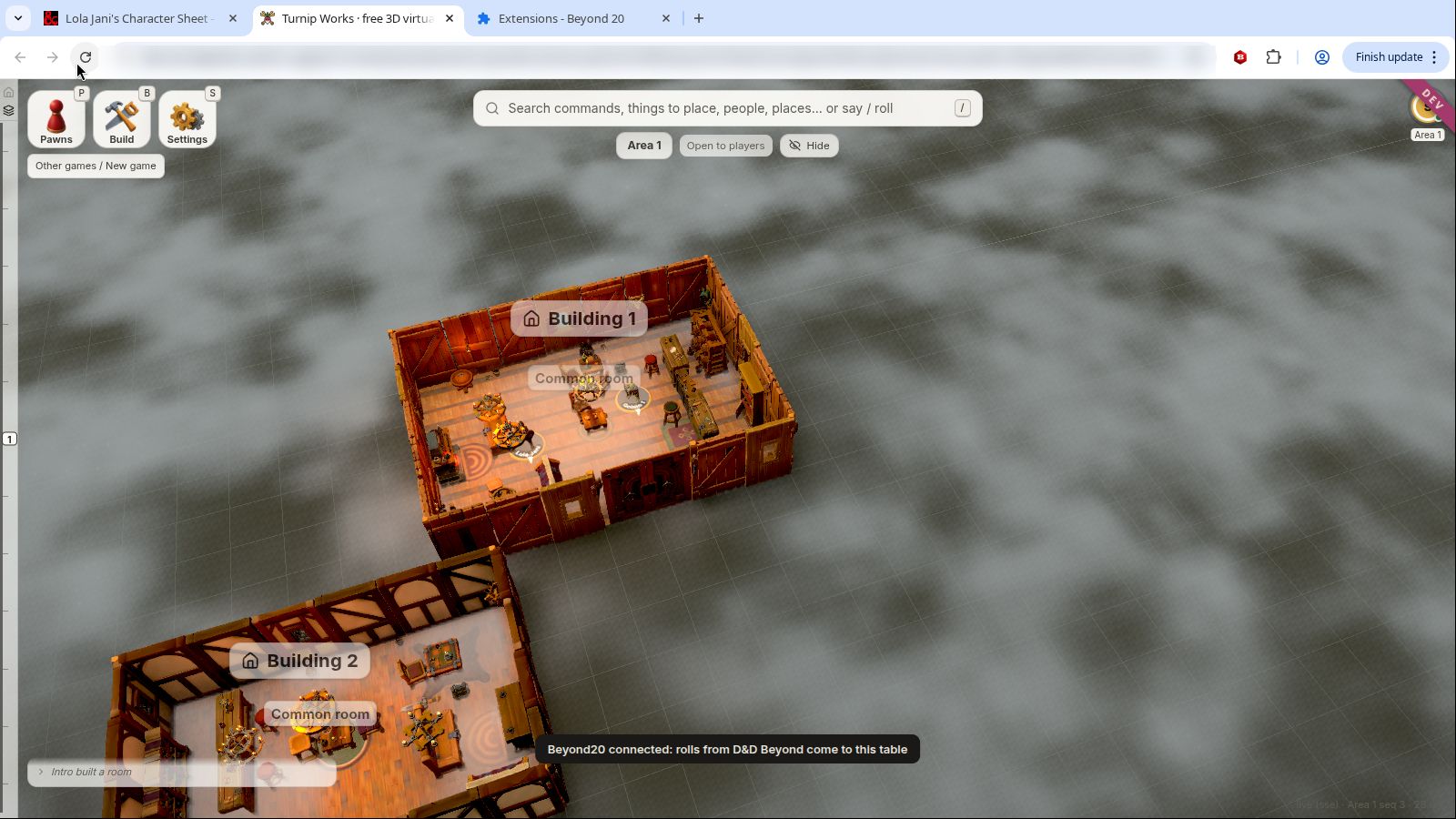
When the table has loaded, a note at the bottom says Beyond20 connected: rolls from D&D Beyond come to this table.
D. Link your sheet to your pawn (once)
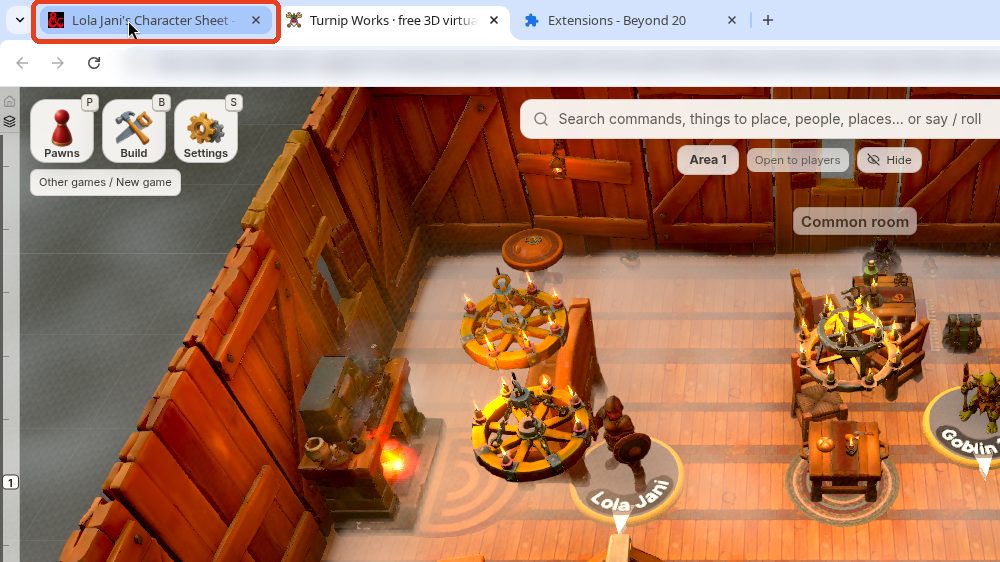
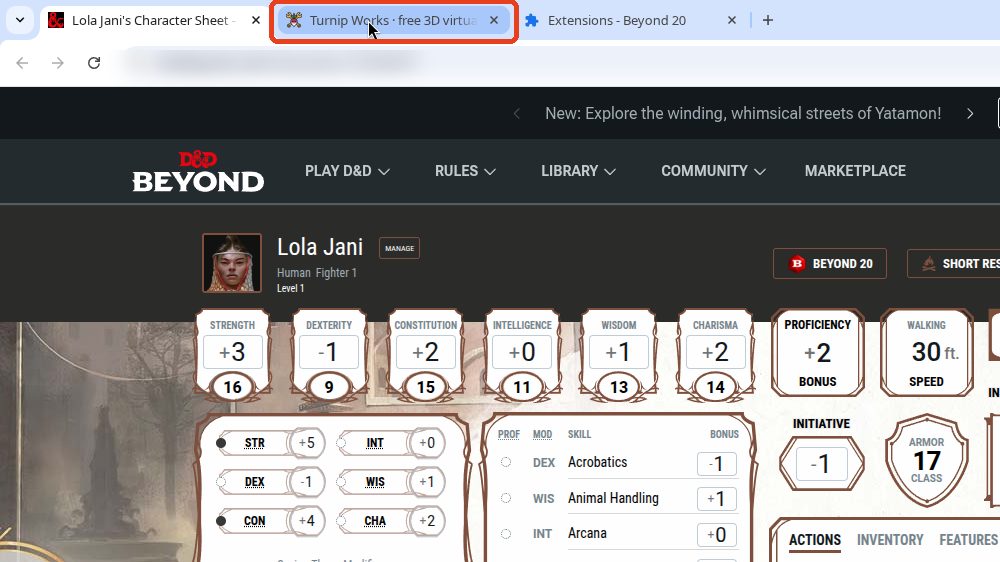
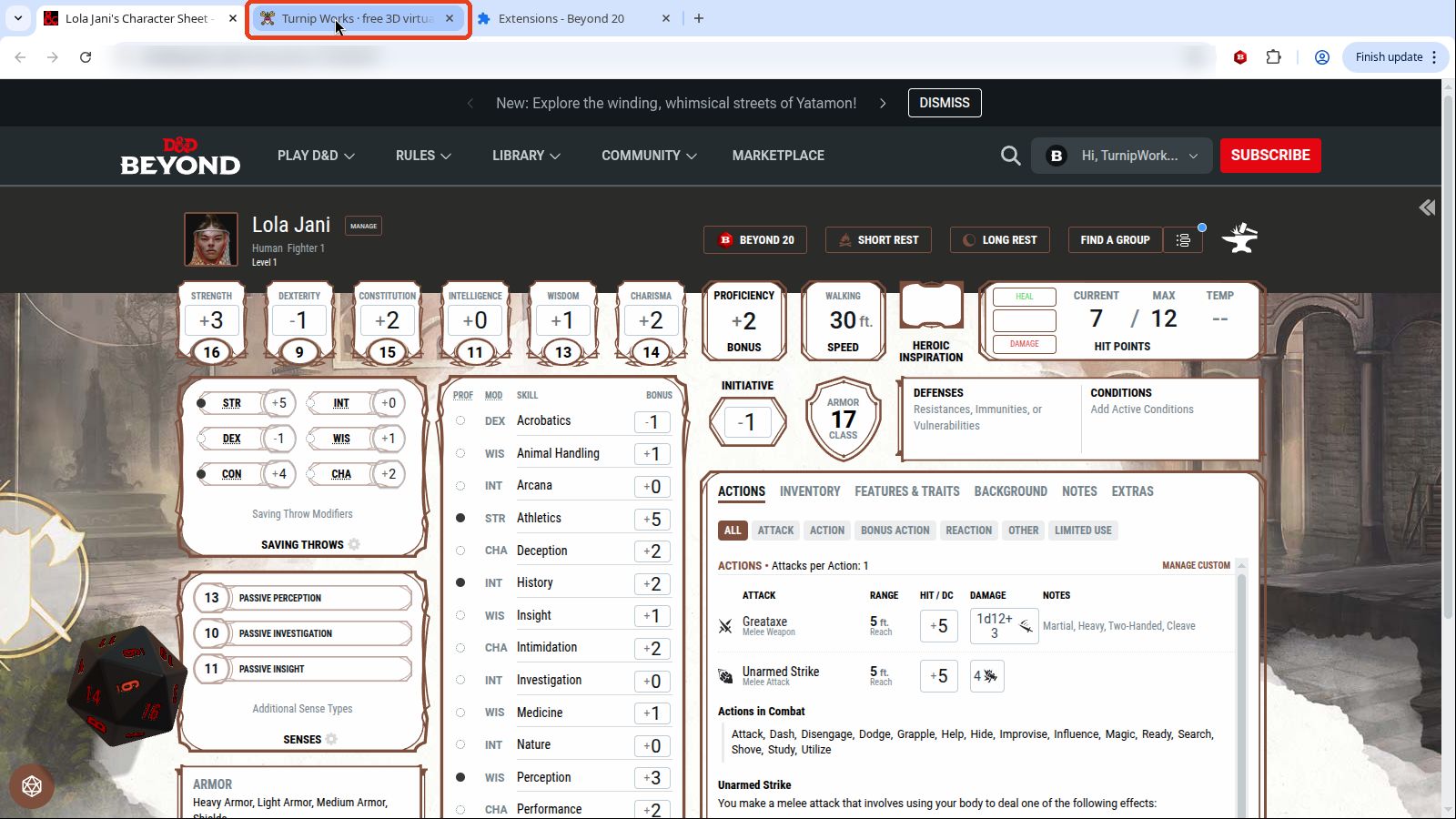
Click your D&D Beyond tab.
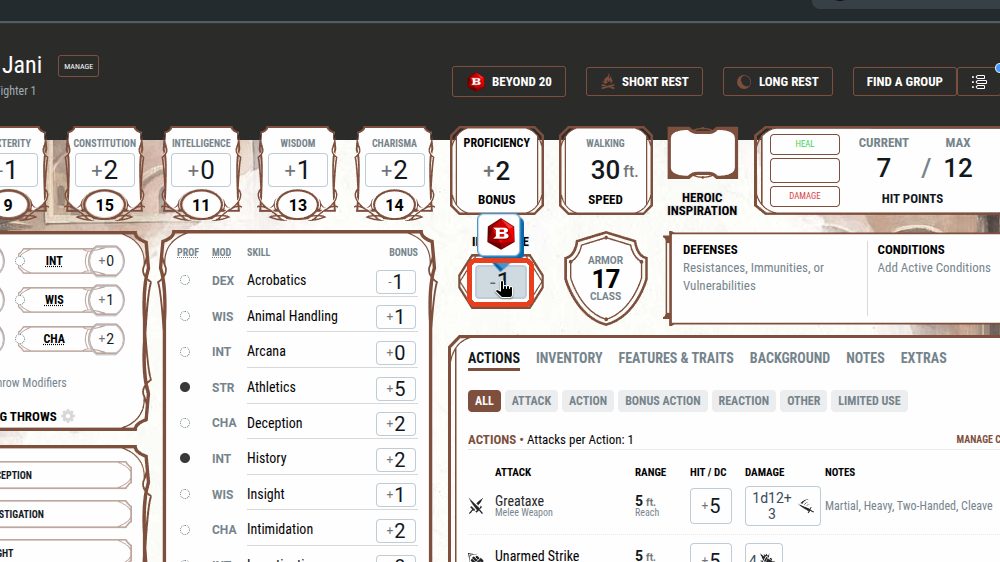
Roll anything. INITIATIVE is a good first roll.
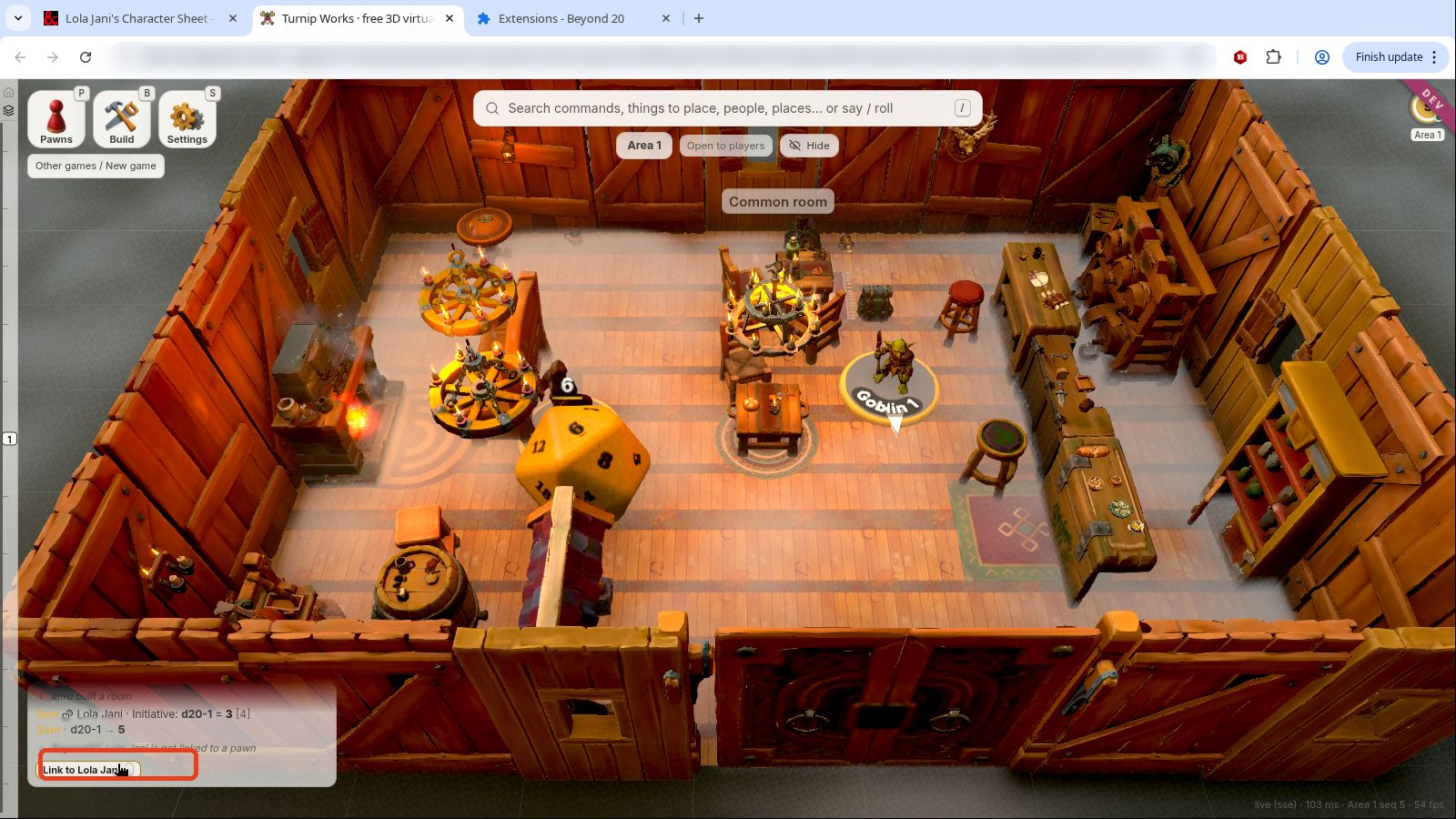
Click your Turnip Works tab. Your roll is on the table.
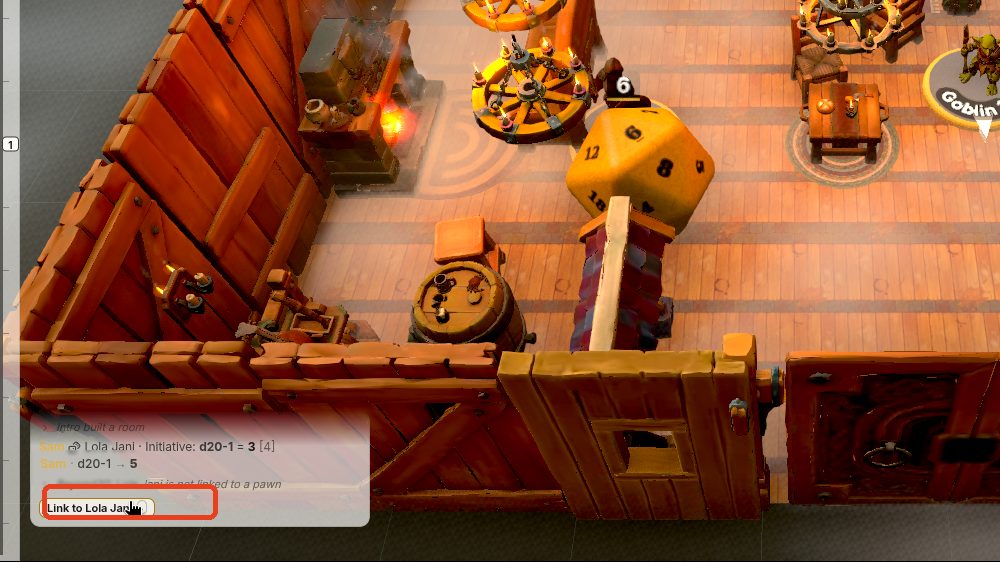
Click Link on the offer that came with the roll: "Link Lola Jani's sheet to Lola Jani", with your character's and your pawn's names. (It also waits in the chat.) Now that pawn is your character.
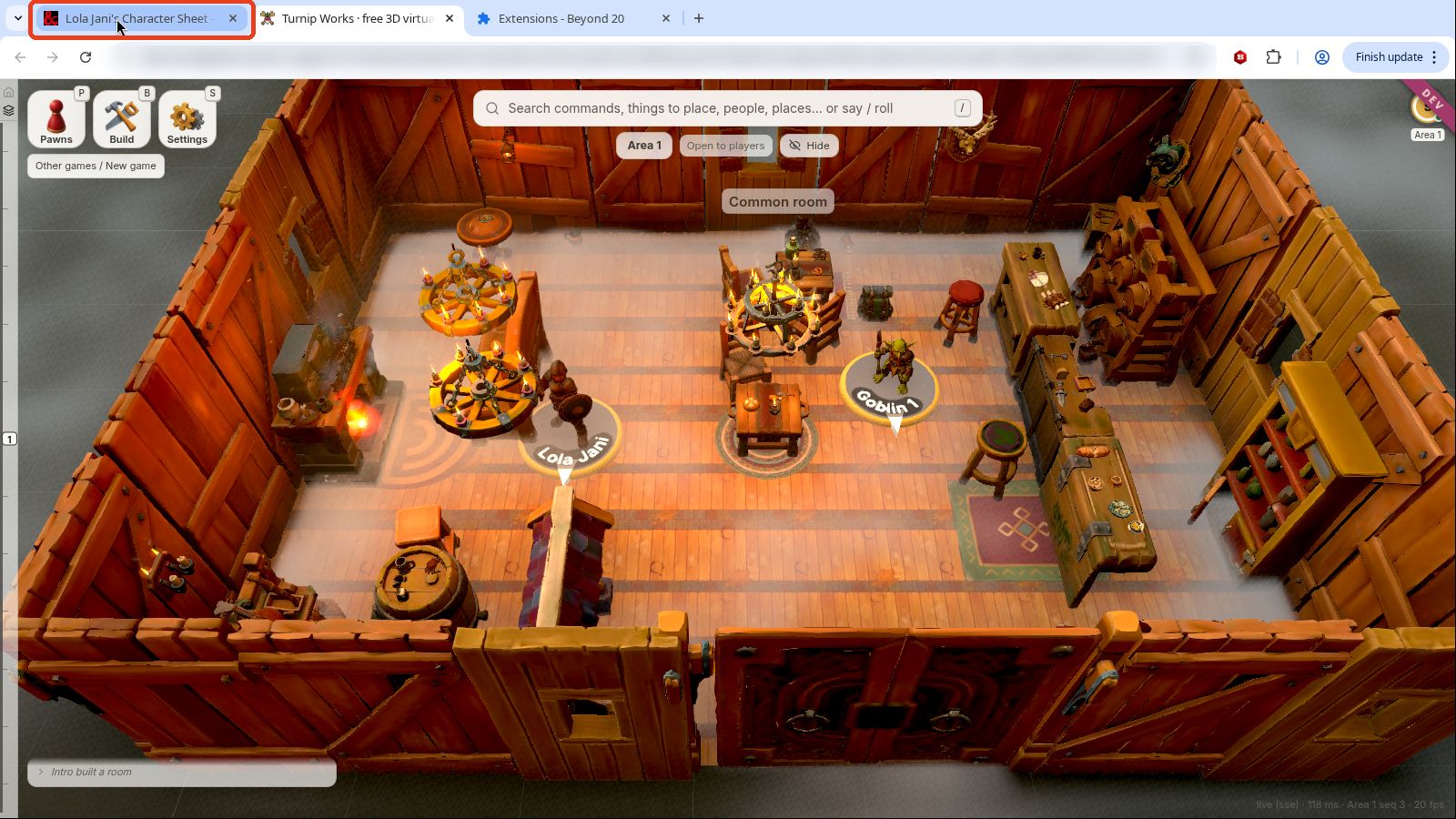
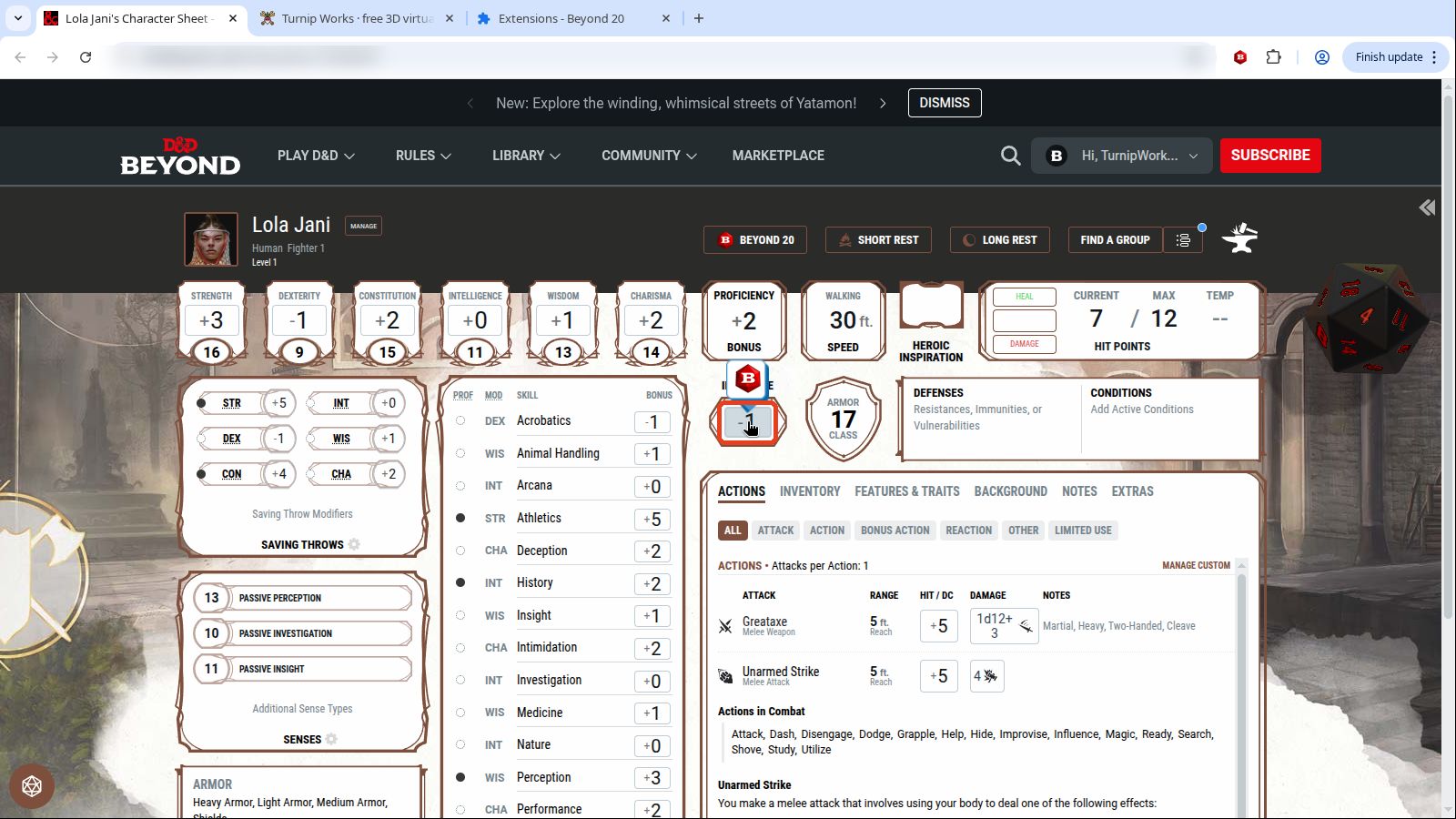
That's it. Every roll you make on that sheet now lands on that pawn.
What you'll see
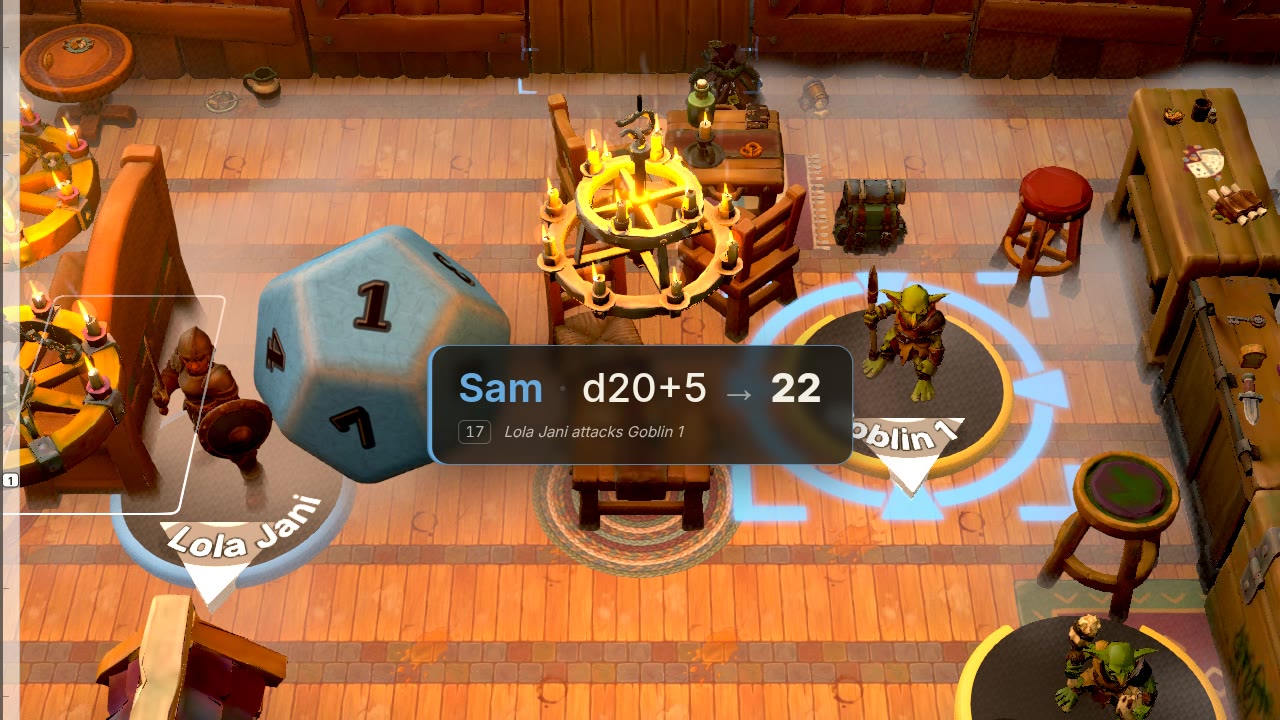
- Your roll lands on the table. Turnip Works throws its own 3D dice from your pawn, and they land on Beyond20's numbers, so everyone at the table sees the same throw and the same total. The chat says what it was: "Lola Jani attacks Goblin 1: d20+5 = 12".
- Initiative goes into the turn order when your GM has started a fight. The Pawns menu (P) shows it. With no fight running, a note says so and nothing changes.
- Hit points. Take damage or heal on your sheet, and your pawn's damage follows.
- Conditions follow your sheet, every one of them. The ones with a picture show on your pawn: prone lies it down, poisoned is a green skull, and so on. Any other, such as deafened or petrified, shows as a small text label. Exhaustion comes with its level.
- Whispered rolls (Beyond20's whisper setting) go to the GM only, never onto the table.
You can check from inside the game, too: Settings ▸ Me ▸ D&D Beyond says D&D Beyond: connected via Beyond20 once Beyond20 has spoken to that tab.
Targets and the Attack button
Pick a target. Point at a pawn and press T, or press the crosshair Target button on that pawn's ring. A target reticle in your seat's colour appears around its base, and everyone sees it. Press T over empty ground, or Esc, to clear it. Attacks from your sheet then name the target: "Lola Jani attacks Goblin 1".
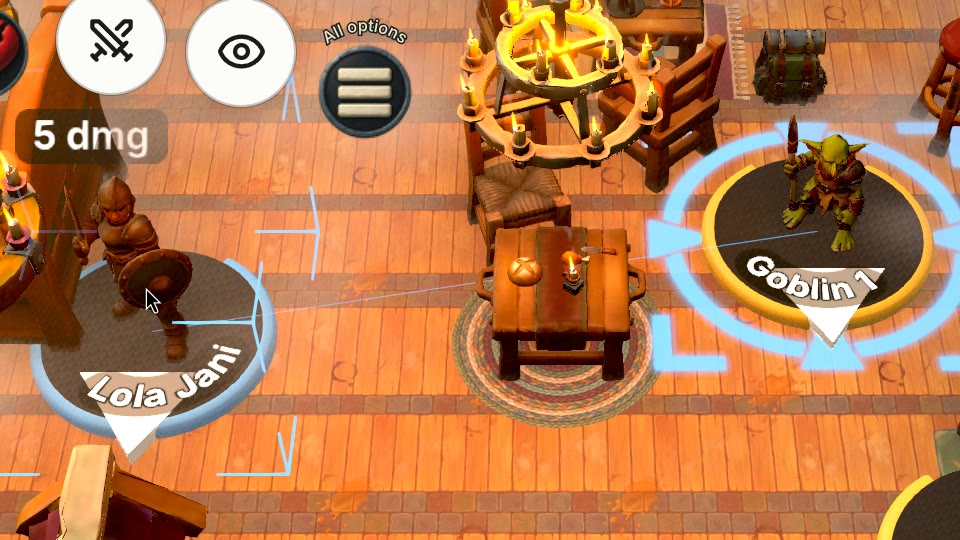
The Attack button. Every pawn you act for has an Attack button (crossed swords) on its ring, with or without Beyond20. It lists the attacks saved on that pawn, such as "Greataxe +5": up to eight, the last one used first, and they stay with the pawn. An attack you roll on your linked D&D Beyond sheet is saved there by name; + Add attack and Edit attacks let you type one in by hand. Pick one and Turnip Works rolls it with its own dice: to hit at your target, then the damage. No target yet? Click a pawn, and that pawn becomes your target.
Turnip Works doesn't check armour class or rules. Your GM still says whether it hits.
Troubleshooting
I can't find "List of custom domains to load Beyond20"
- It is on Beyond20's Options window (steps 9 to 12), not in the small window the icon opens on your character sheet. On the sheet, that small window shows your character's settings, and its "Advanced Options" is a different one.
- In the Options window it only appears after Advanced Options (at the very bottom), and then it is the first setting, back at the very top.
- Another way in: Chrome's menu ▸ Extensions ▸ Manage Extensions ▸ Beyond 20 ▸ Details ▸ Extension options.
No "Beyond20 connected" note
- Check the line for typos. It must be
https://turnipworks.net/*, with the/*at the end. - Press Apply. Typing the line isn't enough: Apply is what asks Chrome for permission.
- Clicked Deny by mistake? Press Apply again and choose Allow.
- Reload the table. A tab that was already open doesn't hear Beyond20 until you reload it.
- Same browser, ordinary window. Your sheet and your table must be in the same browser, and extensions don't run in incognito windows unless you've allowed Beyond20 there (Manage Extensions ▸ Beyond 20 ▸ Details ▸ Allow in Incognito).
Rolls go to the wrong pawn, or don't show
- Link the sheet to your pawn (step 23), or paste your D&D Beyond sheet's address into your pawn's Sheet card. A linked pawn always gets that character's rolls.
- Without a link, a roll goes to your pawn with the character's name (or just its first name), or else to your main pawn. If that's the wrong one, link the right pawn: a linked pawn always wins.
The chat shows the roll, but no dice
A die is drawn only where your pawn can see, as with everything else on the table. In the dark or behind fog of war, the dice land unseen and the chat line still comes.
Rolls also show up in Roll20 or Foundry
Beyond20 sends each roll to every tabletop tab it knows about. Close the other tab, or choose your Turnip Works tab in Beyond20's option Select the VTT tab or Game to send rolls to.
Hit points don't move
Keep Beyond20's option Update VTT Token HP switched on (it is unless you've changed it), and link the sheet to your pawn.
An attack rolls to hit but no damage
Beyond20's option Auto roll Damage and Crit rolls the damage along with each attack. It's on unless you've switched it off.
Firefox
Beyond20 is on Firefox Add-ons too, the same version (2.21.0). These steps were walked in Chrome, not Firefox; the setting and its name are the same. The differences:
- Install: click Add to Firefox, then Add.
- The options: menu ▸ Add-ons and themes ▸ Beyond20 ▸ Options (or its toolbar icon on your table tab ▸ Beyond20 Options). Then steps 11 to 15 as above: Advanced Options at the bottom, the box at the top, Apply, Allow.
- The permission question is a panel under the address bar; choose Allow. Said no? The Beyond20 page in Add-ons and themes has a Permissions tab where you can switch turnipworks.net back on.
- Private windows: Firefox runs Beyond20 there only if you turn on Run in Private Windows for it.
What we store, and what we don't
Turnip Works only listens to what Beyond20 sends to your table's tab. We keep the roll's name ("Greataxe", "Stealth") and its numbers: every die, the total, to hit and damage, and the damage type. We also keep your hit points (as damage on your pawn) and condition words. If you click Link, your pawn keeps your sheet's address.
We never store spell text, feature or item descriptions, or anything else written on your sheet, even though Beyond20 passes some of it along. We never log into D&D Beyond, and we never see your D&D Beyond account or password.
Credit
Beyond20 is a free, open-source browser extension made by Kakaroto: its website, its source code, Chrome Web Store, Firefox Add-ons. It works with many tabletops, not just ours. If it makes your games better, its website has ways to support its author.
Turnip Works is not affiliated with Wizards of the Coast or D&D Beyond, and not affiliated with Beyond20 either. D&D Beyond is a trademark of Wizards of the Coast. We use the name only to say what this page connects.
Open Turnip Works